Viewing Patient Reflections
Learn how to use a patient's chart: read shared reflections, add private or shared notes, flag items for follow-up, and manage homework
Last updated:
The Patient Chart
Select a patient on your dashboard to open their chart — everything about your work together in one place. At the top is a summary card, followed by their Schedule, Homework, shared Reflections, Session notes, and Care settings.
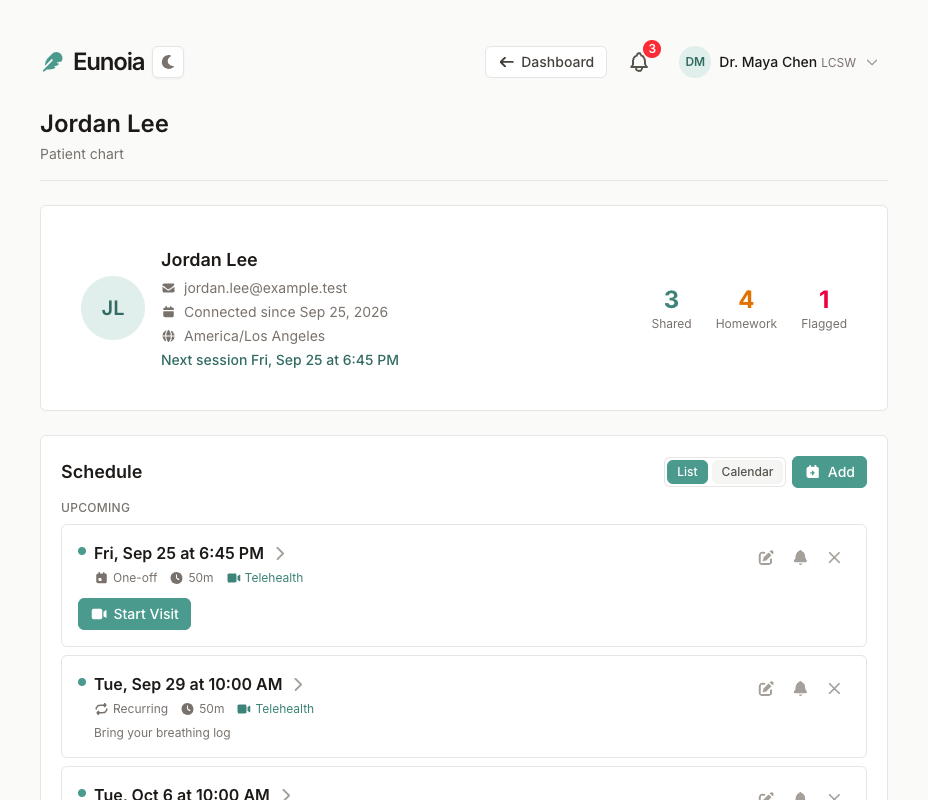
The Summary Card
The summary card at the top of the chart shows:
- Name and email address
- Connected since — when your care relationship began
- Time zone — handy when you see patients in other regions
- Next session — the date and time of your next appointment
- Shared, Homework, and Flagged — how many reflections they've shared, how much homework is open, and how many reflections you've flagged
Reading Shared Reflections
The Reflections section shows everything your patient has chosen to share with you:
- Only shared reflections — private reflections never appear here. Your patient can also make a reflection private again later.
- Grouped by day, newest first
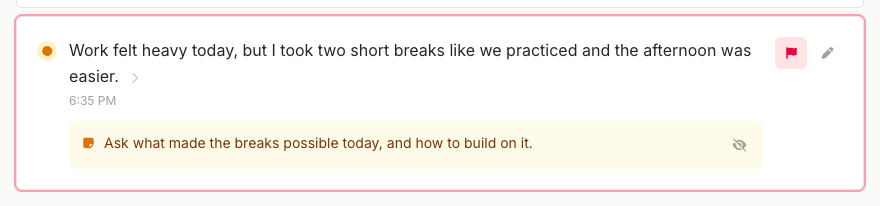
- Status — a check for completed reflections (which also appear struck through), a dot for active ones
- Details — the time, how many images are attached, whether there's a voice recording, and how many notes your patient shared on it
- Your note — shown under the reflection, marked private or shared
Select a reflection's text to open it.
Remember: a quiet list doesn't necessarily mean disengagement — your patient may be keeping some thoughts private.
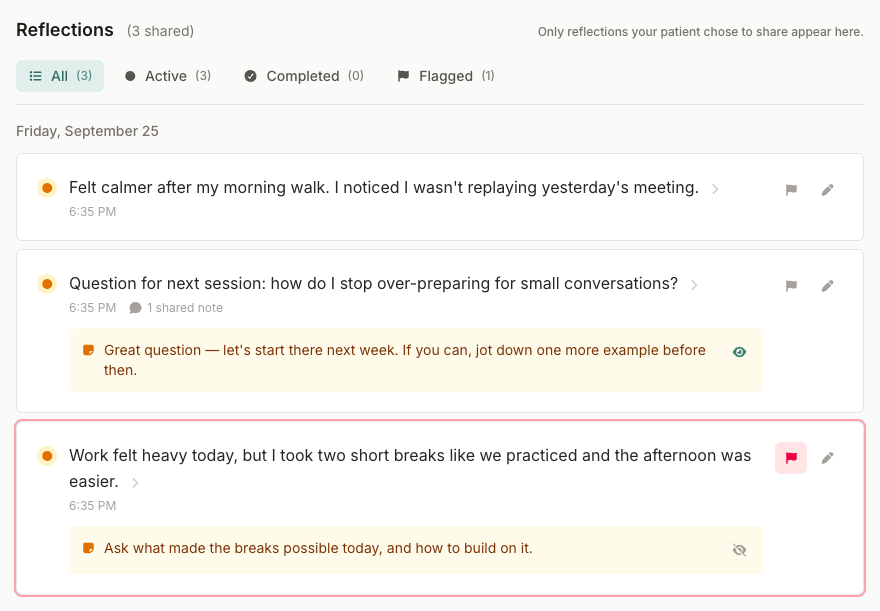
Filtering Reflections
Use the filters above the list to focus your view:
- All — every reflection your patient has shared
- Active — ones your patient hasn't marked complete
- Completed — ones your patient has checked off
- Flagged — ones you've flagged for follow-up
Each filter shows a count. Before a session, Flagged makes a ready-made agenda.
Opening a Reflection
Opening a reflection shows it in full:
- The reflection — your patient's words, its status, and any images (select one to view it larger)
- Voice recording — if your patient recorded it, you can listen to it (and read the original transcription if they edited the text)
- Your note — your note editor and the Flag button
- Patient's notes — follow-up notes your patient chose to share
- Activity — the reflection's history, such as when it was shared or edited
Use Back to patient at the top to return to the chart.
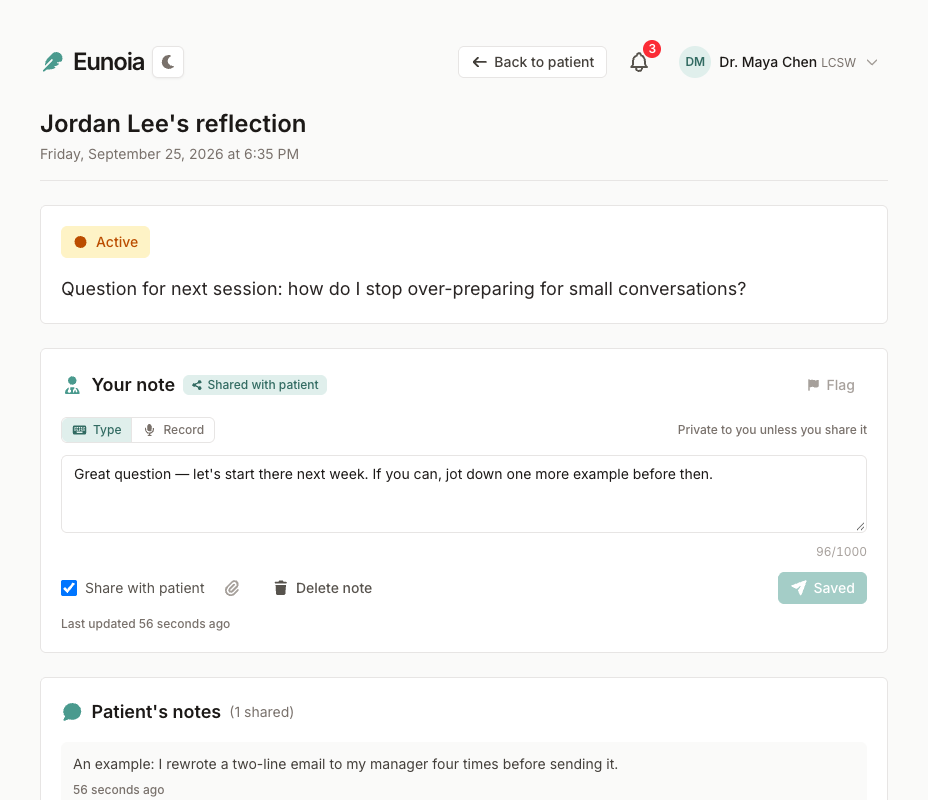
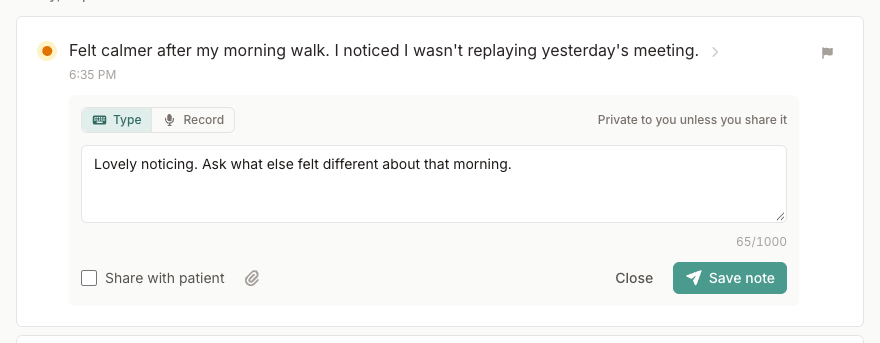
Adding Your Notes
Add a note to any shared reflection — select the pencil (Add a note) in the list, or use Your note on the reflection's page:
- Type your note, or switch to Record to dictate it — the recording is transcribed into your note, and you can keep the audio as a voice note
- Attach files if helpful — PDFs, images, Word, Excel, or text files (up to 5, 10 MB each)
- Select Save note
Notes are private to you by default. Tick Share with patient to let your patient read the note and its attachments — it appears under their reflection and they're notified. Untick it anytime to make the note private again, or select Delete note to remove it along with its voice note, attachments, and flag.
Use notes for: clinical observations, questions for the next session, links to the treatment plan, or a few words of encouragement to share back.
Flagging Reflections for Follow-Up
Select the flag on any shared reflection to mark it for follow-up. Flagged reflections:
- Are highlighted in the list and collected under the Flagged filter
- Count toward the Flagged number on the chart and in your patient list
- Appear in Flagged reflections on your dashboard, together with your note
Flags are private — your patient is never told or shown. Select the flag again to clear it.
When to flag: topics for the next session, recurring themes worth exploring, progress to celebrate, or anything you want to check in about.
Homework in the Chart
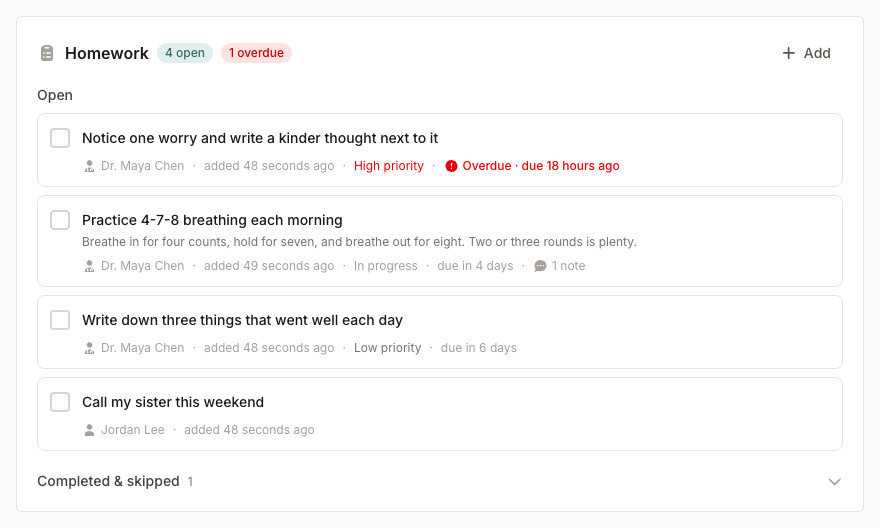
The Homework section shows your patient's assignments, with counts of open and overdue items.
- Add — type the assignment, or switch to dictating it: your recording becomes the item's first voice note, and its transcription fills in the title and details. Set a priority and an optional due date.
- Check off items, or open one to change its status (Assigned, In progress, Completed, or Skipped), priority, or due date, and to read and add notes. Both you and your patient can leave notes, typed or as voice notes.
- Items are grouped into Open and Completed & skipped.
Homework you assign from an appointment's page is linked to that session. For an overview across all of your patients, see Outstanding homework on your dashboard.
Schedule, Session Notes, and Care Settings
The rest of the chart covers the practical side of care:
- Schedule — upcoming appointments, recurring schedules, and a calendar view. See Scheduling Appointments.
- Session notes — the notes you've written for past sessions, with a marker when a note is shared with your patient. Select one to open its appointment.
- Care settings — the Mobile number for reminders used for this patient's text reminders, a Session fee (leave it empty to use your default), and End relationship. Ending the care relationship removes your access to their shared reflections and homework, cancels upcoming appointments, and notifies your patient. History is kept, and you can reconnect later with a new invitation.