Managing Notifications
Learn how the notification bell and notification center work, what you are notified about, and how to choose email, text, or in-app delivery
Last updated:
Staying Informed
Eunoia keeps you in the loop without getting in the way. The bell in the header shows what's new, the notification center keeps your full history, and Settings → Notifications lets you decide what also reaches you by email or text message.
The Notification Bell
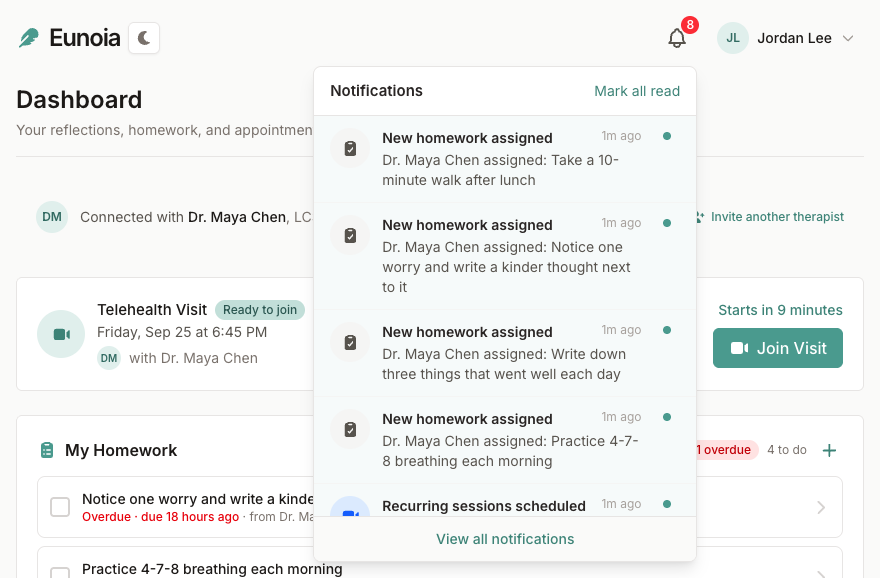
The bell sits in the header of every page:
- Unread count — a number on the bell shows how many notifications you haven't read
- Recent notifications — select the bell to see the latest ones
- Mark all read — clears the count in one step
- View all notifications — opens the notification center
Select a notification to open the page it's about — an appointment, a reflection, or your homework, for example. It's marked as read as you go.
The Notification Center
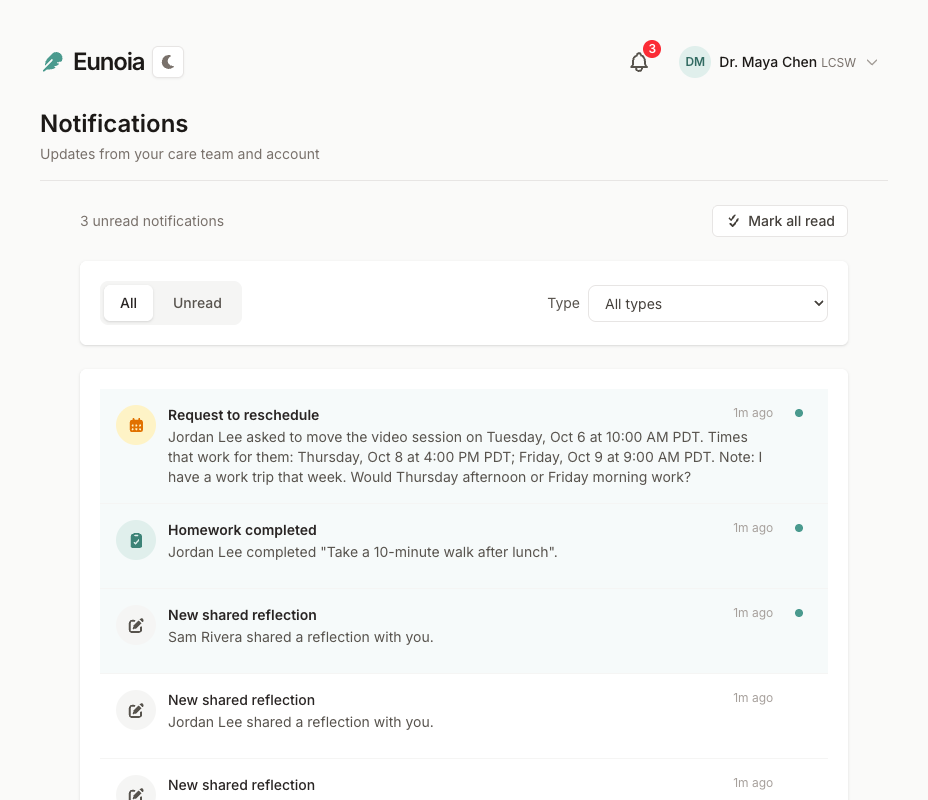
For your full history, open the notification center from View all notifications in the bell:
- A summary — how many notifications are unread, or "You're all caught up"
- Mark all read — when there's anything unread
- Show All or Unread, and pick a Type to narrow the list
- Action buttons — some notifications offer a next step, like Resend invitation
- Load older notifications — keep scrolling back in time
- Clear dismissed notifications — permanently delete the ones you've dismissed
What You’re Notified About
Here's what Eunoia notifies you about:
Appointments
- New appointments and recurring schedules
- Reminders 24 hours and 1 hour before
- Rescheduled and cancelled appointments
- Reschedule requests from patients (therapists)
Video visits
- A video visit was scheduled
- A video visit is starting soon, or the other person is waiting
Reflections and notes
- A patient shared a reflection (therapists)
- Your therapist shared a note on your reflection or session (patients)
Invitations
- You've been invited to connect
- Your invitation was accepted
- Someone tried an invitation link after it expired, so you can resend it
Homework
- New homework
- A reminder the day before homework is due (patients)
- Homework completed (therapists)
System
- Security alerts about your account
- Welcome messages
- Payment problems with your subscription (therapists)
Filtering Your Notifications
Two filters help you find what you need:
- All or Unread — show everything, or only what you haven't read yet
- Type — pick a single kind of notification, grouped under Appointments, Video Visits, Reflections, Invitations, Homework, and System
Combine them — for example, unread homework notifications only.
Opening and Dismissing Notifications
- Open — select a notification to go to the related page. Opening it marks it as read.
- Take action — some notifications have buttons for a next step, such as Resend invitation
- Dismiss — select the × beside a notification to remove it from your list. On a computer, the × appears when you point at the notification.
Catching Up in One Step
- Mark all read — clears your unread count at once. Handy after some time away.
- Clear dismissed notifications — permanently deletes the notifications you've dismissed.
For Therapists
Notifications that matter most for therapists:
- New shared reflections — a patient shared a reflection with you
- Invitations — a patient accepted your invitation, invited you, or tried a link after it expired
- Reschedule requests and cancellations — a patient asked to move an appointment or cancelled one
- Homework completed — a patient finished an assignment
- Appointment reminders — before each session
- Payment problems — if a payment for your Eunoia subscription fails
For Patients
Notifications that matter most for patients:
- Invitations — a therapist invited you to connect
- Appointments — new appointments, changes, cancellations, and reminders before each one
- Video visits — when a video visit is about to start
- Homework — new assignments, and a reminder the day before something is due
- Notes from your therapist — when your therapist shares a note on a reflection or a session with you