Managing Your Practice Dashboard
Learn how to use your dashboard: today's appointments, flagged reflections, outstanding homework, patients, and invitations
Last updated:
Dashboard Overview
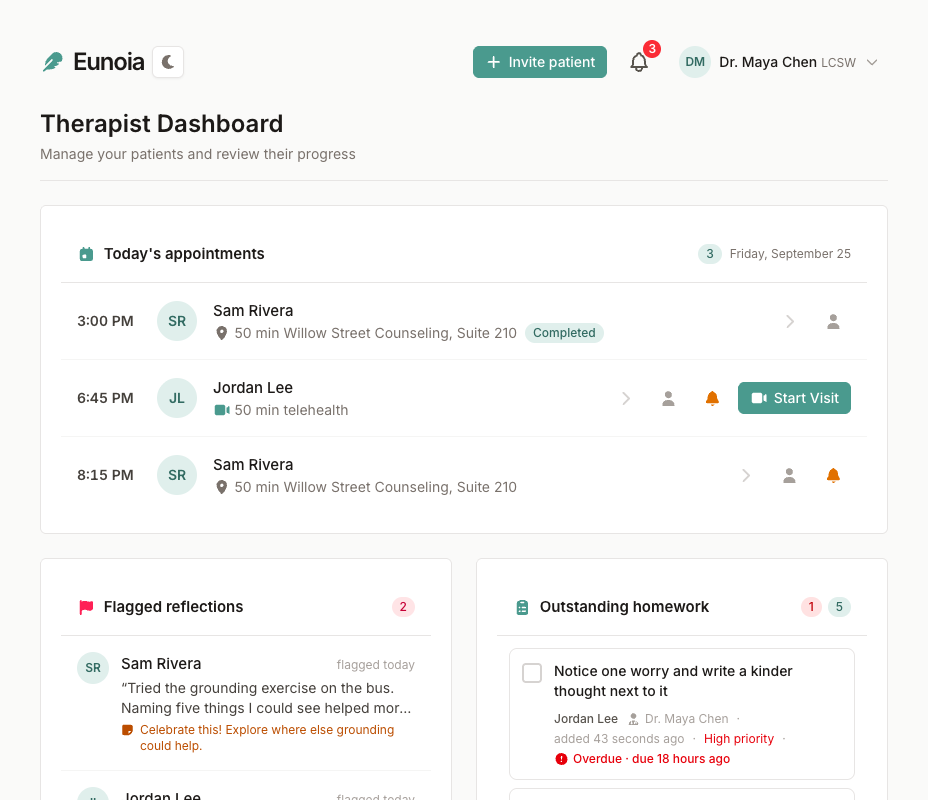
Your Therapist Dashboard is your practice at a glance. From top to bottom:
- Notices — for example, a reminder to complete your profile
- Patient invitations — requests from patients who invited you (only when there are any)
- Today's appointments — every session on today's calendar
- Flagged reflections and Outstanding homework — what needs your attention
- Past appointments — select it to review recent sessions
- Patients and Pending invitations — everyone you work with, and who you're waiting to hear from
Today's Appointments
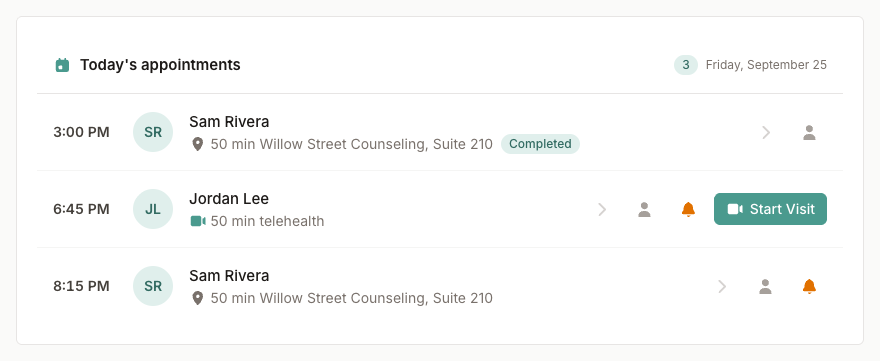
Today's appointments lists each session on today's calendar, in order:
- Time and patient, plus the length and type — a video visit (telehealth), an office location, or a session
- Status — In progress, Ended, Completed, Cancelled, or No-show
- Notes you added when scheduling
Each row has quick actions: open the patient's chart, Send a reminder by email or text, and — from 15 minutes before a video visit — Start Visit (or Join Now once your patient is waiting). Select the row itself to open the appointment's page, where you write session notes.
The list refreshes throughout the day. When every session is done, you'll see That's all for today!
Flagged Reflections and Outstanding Homework
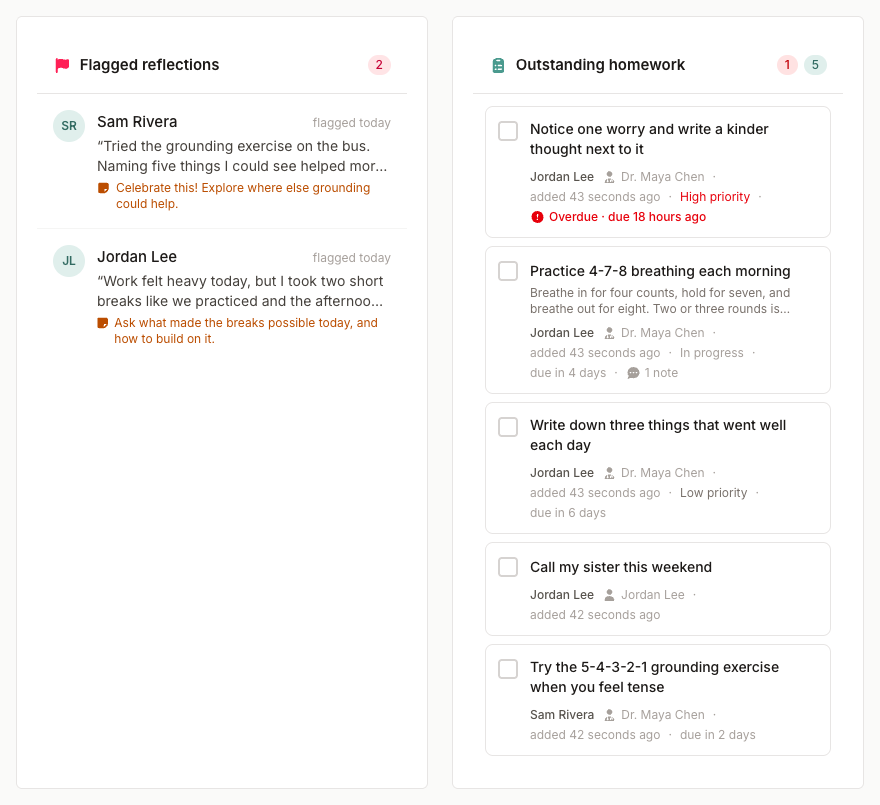
Two cards collect what needs your attention across all of your patients:
- Flagged reflections — shared reflections you flagged for follow-up, with the patient's name, an excerpt, your private note, and when you flagged it. Select one to open the reflection.
- Outstanding homework — open homework for all of your patients, overdue items first. Check an item off, or select it to see details, notes, and linked sessions.
Flags and your notes are private to you unless you choose to share a note.
Your Patient List
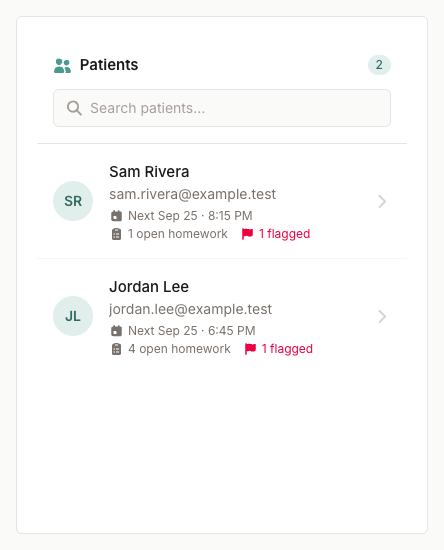
The Patients card lists everyone you're connected with:
- Search by name or email to find someone quickly
- At a glance — each patient's next appointment, open homework, and how many of their reflections you've flagged
- Select a patient to open their chart
Patients appear here once they accept your invitation (or you accept theirs).
Pending Invitations
The Pending invitations card lists invitations you've sent that haven't been accepted yet, with when each was sent and when it expires. Copy an invitation link, resend it (it then works for another 7 days), or cancel it. See Inviting Patients for the details.
When a Patient Invites You
Patients can invite you, too — for example, when they join Eunoia before you do. Their requests appear in a Patient invitations card at the top of your dashboard, with their name, email address, and any message. Select Accept to connect, or Decline.
Quick Actions
Common actions are always a click away:
- Invite patient — top right of your dashboard
- Notifications — the bell in the header
- Settings and Sign out — your name at the top right opens the account menu
- Light or dark — the switch next to the Eunoia logo
- Ask Eunoia — the button in the corner, or ⌘J / Ctrl+J, to look things up or get a task started (see Ask Eunoia and AI Connections)
Opening a Patient’s Chart
Select any patient to open their chart. It brings together:
- Their contact details, time zone, and next session
- Schedule — upcoming appointments and recurring schedules
- Homework — assign, review, and discuss homework
- Reflections — everything they've shared with you, with your private notes and flags
- Session notes — your notes from past sessions
- Care settings — their reminder number, session fee, and ending the care relationship
For a full tour, see Viewing Patient Reflections and Scheduling Appointments.