Inviting Patients
Learn how to invite patients by email or text message, track your invitations, and what your patients see
Last updated:
Overview
Invitations are how you connect with patients on Eunoia. Send one by email, text message, or both, with your patient's name and an optional personal note. When your patient accepts, you're connected: you'll see the reflections they choose to share, and you can assign homework and schedule appointments with them.
Starting a New Invitation
From your therapist dashboard, select Invite patient at the top right. If you don't have any patients yet, you can also select Invite your first patient in the Patients card.

Filling Out the Invitation
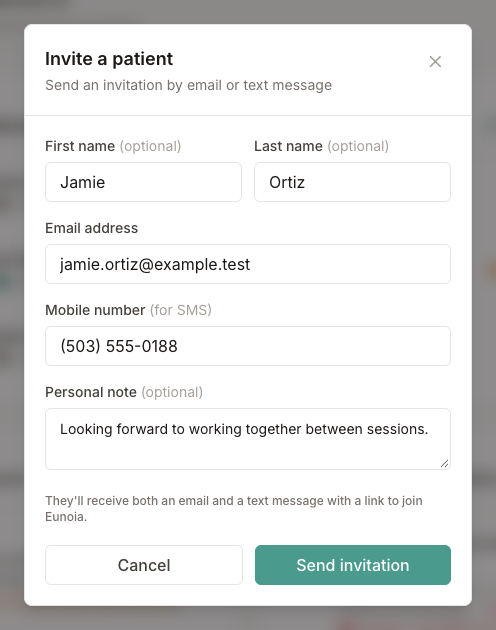
The Invite a patient form lets you share as much as you know:
- First name and Last name (optional) — personalize the invitation. Your patient is greeted by name, and their name is suggested when they set up their account.
- Email address — your patient receives an email with a secure link to join Eunoia and connect with you.
- Mobile number (for SMS) — your patient receives a text message with the link.
- Personal note (optional) — a few words of welcome, included with the invitation.
Enter an email address, a mobile number, or both. The line under the form tells you how your patient will receive the invitation.
Sending the Invitation
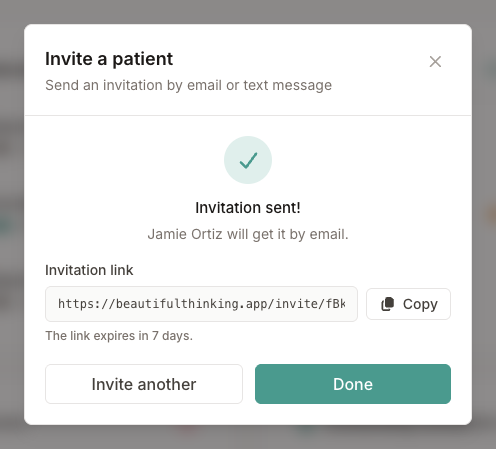
Select Send invitation. Eunoia sends it right away and confirms how it was delivered — for example, "Jamie Ortiz will get it by email." If a text message couldn't be sent, you'll see why.
The confirmation also shows the Invitation link. Select Copy if you'd like to share it another way, such as in your own email or your practice's portal. The link expires in 7 days.
Select Invite another to invite the next patient, or Done to close the form.
Tracking Pending Invitations
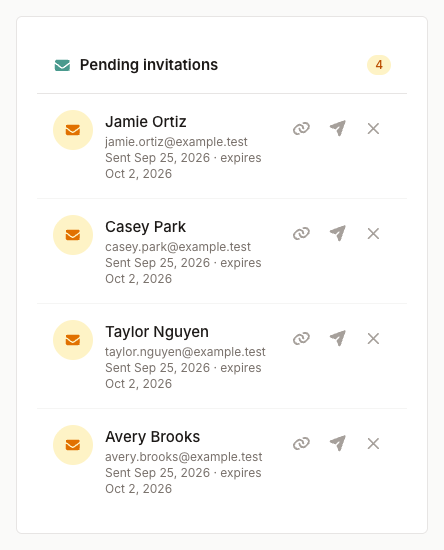
The Pending invitations card on your dashboard lists invitations that haven't been accepted yet. For each one you'll see:
- The patient's name, email address, and mobile number
- When you sent it and when it expires (or an Expired label)
- Copy invitation link — copy the link to share it yourself
- Resend invitation — send it again; the link then works for another 7 days
- Cancel invitation — the link stops working right away
When a patient accepts, they move to your Patients list and you'll get a notification. If a patient tries a link after it expired, you'll be notified so you can resend it.
What Your Patient Sees
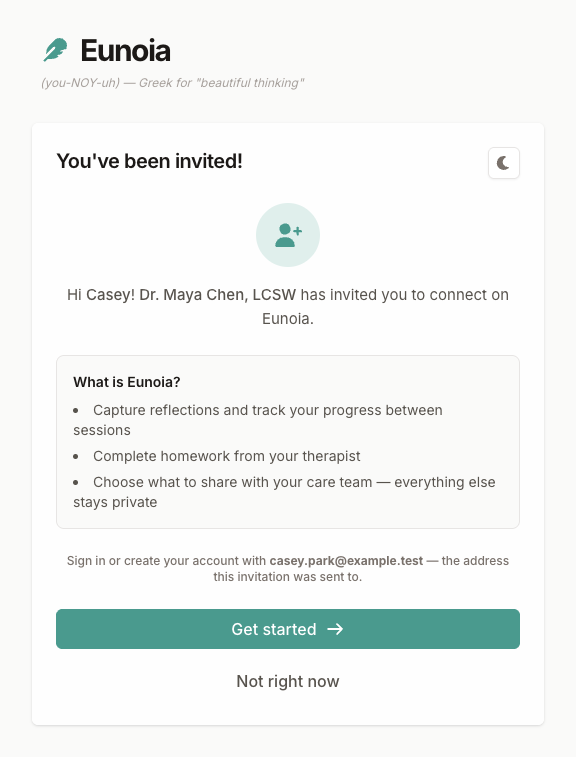
When your patient opens the link, they see a welcoming page that:
- Greets them by first name (if you entered it) and shows your name and credential
- Explains what Eunoia is — reflections, homework, and choosing what to share
- Offers Get started, so they can sign in or create an account with the email address you invited
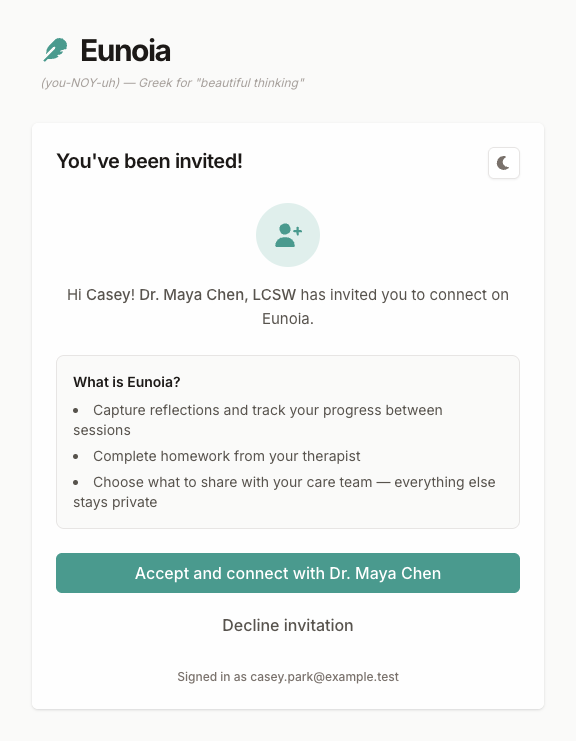
Once they're signed in, the same page lets them Accept and connect with you or Decline invitation. New accounts can add the name they'd like you to see as they accept. If your patient already uses Eunoia, the invitation also appears at the top of their dashboard.