Managing Your Settings
Learn how to update your profile and time zone, manage sign-in and passkeys, choose notifications and text messages, and keep your professional details current
Last updated:
Opening Settings
Open Settings from your account menu — select your name at the top right of any page. Settings are organized into sections:
- Profile, Account, Notifications, and Developer & AI — for everyone
- Credentials, Licenses, Practice, and Billing — for therapists
Profile
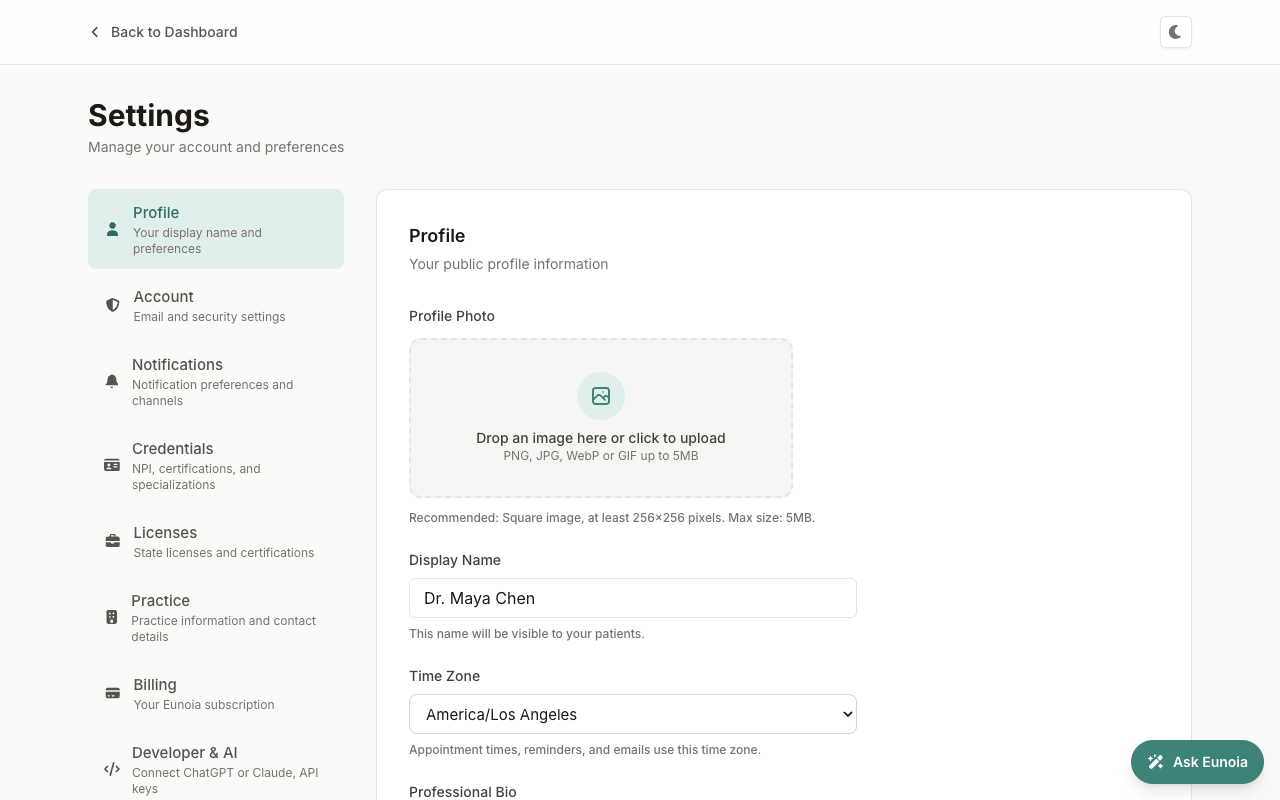
Profile controls how you appear to others:
- Profile Photo — drop an image or select to upload one (PNG, JPG, WebP, or GIF up to 5 MB), then crop it. Select Remove to go back to your initials.
- Display Name — the name your therapist (or your patients) will see
- Time Zone — appointment times, reminders, and emails use this time zone. If your device is set to a different one, you'll see a shortcut to Use this device's time zone.
- Professional Bio (therapists) — a short introduction that's visible to your patients, up to 2,000 characters
Select Save Changes when you're done.
Account
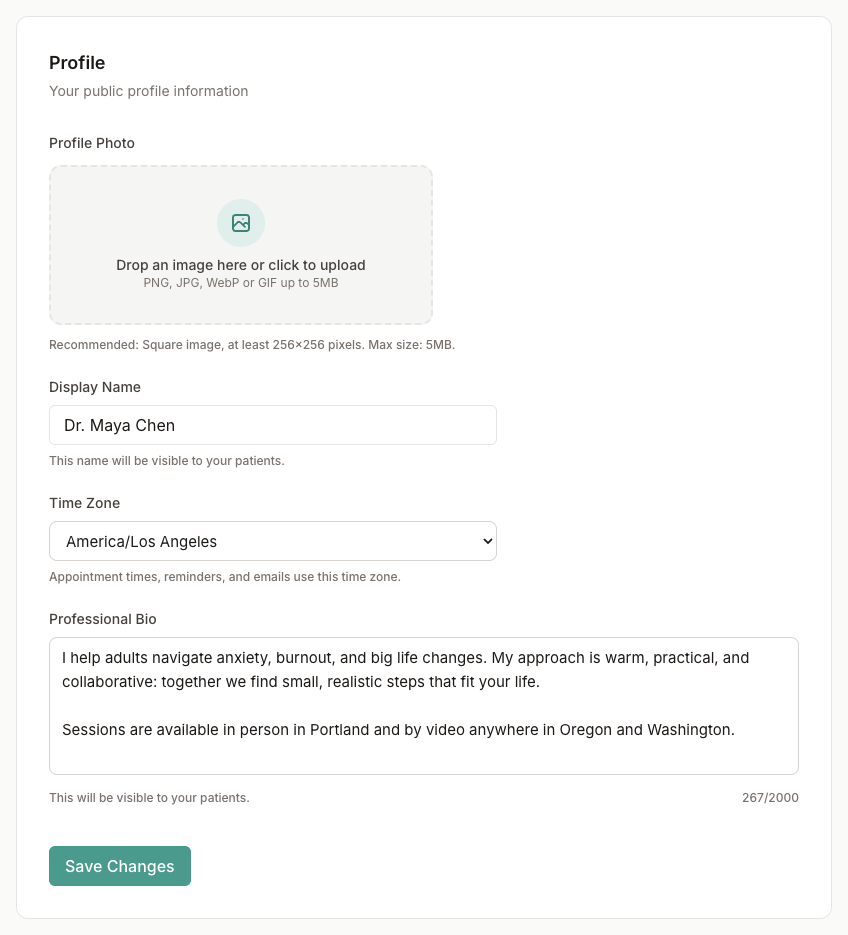
Account covers how you sign in:
- Email Address — the address you use to sign in with one-time codes and magic links
- Passwordless Authentication — Eunoia never stores a password; each sign-in uses a fresh code or link
- Passkeys — select Add a passkey to sign in with your device's fingerprint or face unlock, or a security key. You can rename or delete passkeys here too.
- Linked accounts — shows whether Google and Apple are linked. Sign in with Google or Apple using the same email address to link them automatically.
- Account Information — your account ID, when you joined, and your role
To delete your account, please contact support.
Notifications and Text Messages
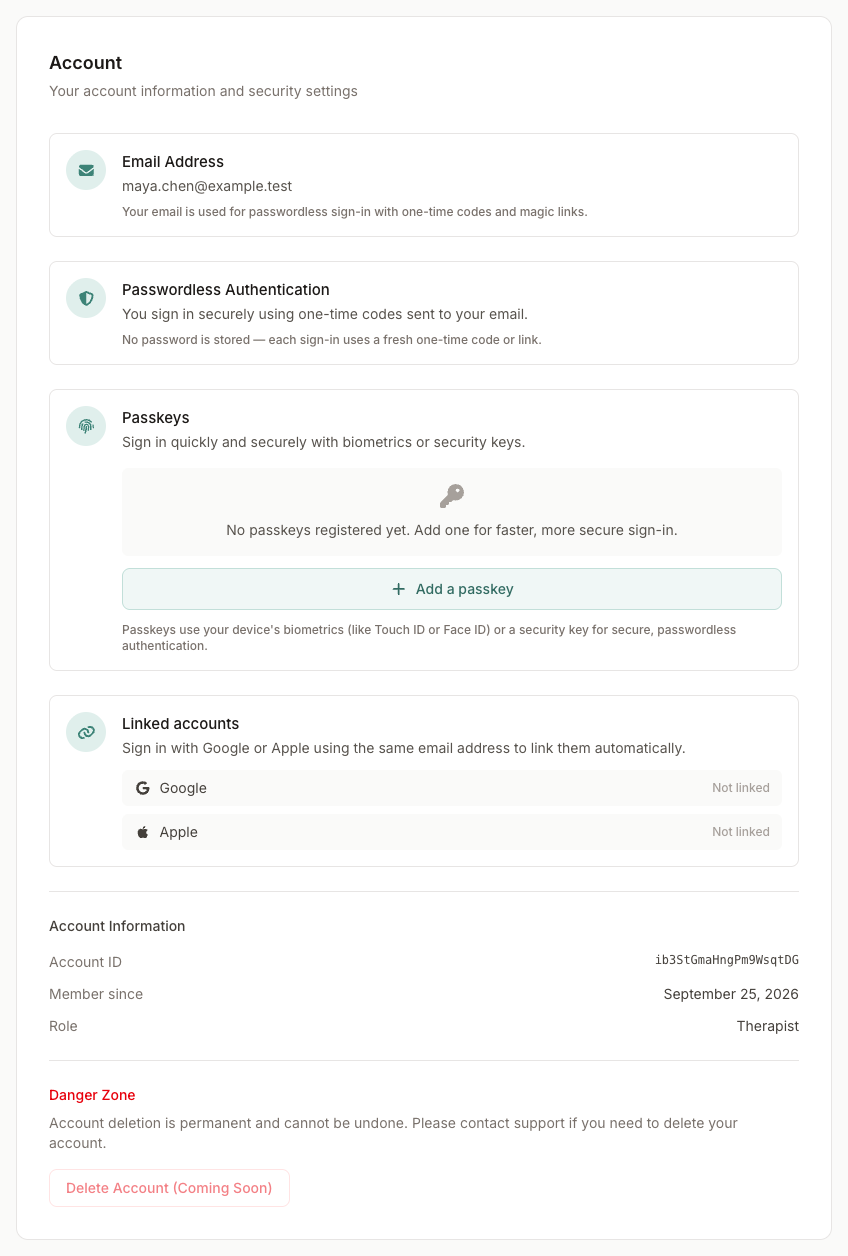
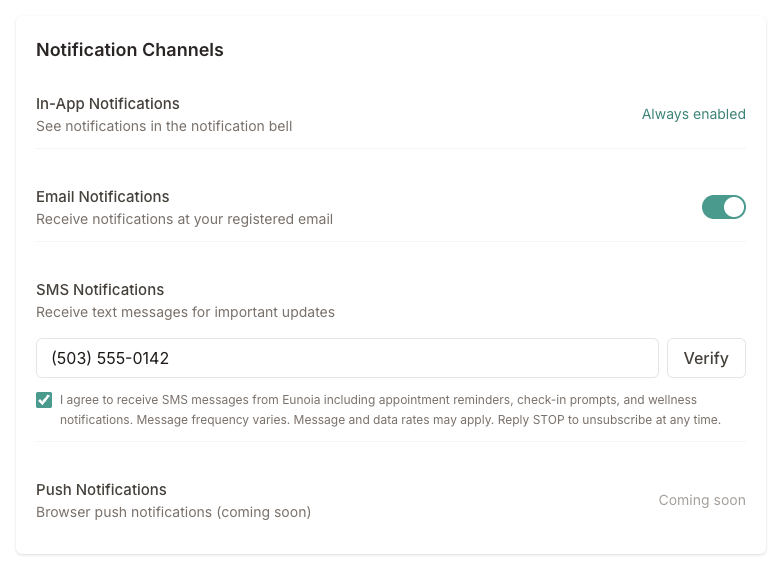
Notification Channels decide how notifications reach you:
- In-App Notifications — always on, in the notification bell
- Email Notifications — switch them on or off (this saves right away)
- SMS Notifications — text messages for important updates, like appointment reminders
- Push Notifications — coming soon
To get text messages: enter your mobile number, read the consent statement and tick the box to agree to receive texts (message frequency varies, message and data rates may apply, and you can reply STOP to unsubscribe), then select Verify. Enter the 6-digit code we text you and select Confirm.
Once your number is verified you can turn SMS notifications on or off, select Change number, or select Remove to stop text messages and have Eunoia forget the number. If you reply STOP to one of our texts, we won't text you until you verify your number again.
Notification Preferences below let you pick the channels for each type of notification — for example, appointment reminders by email and text, but homework updates in the app only. Select Save Changes to apply them. A channel is offered only once it's turned on above. See Managing Notifications for what each type covers.
Credentials (Therapists)
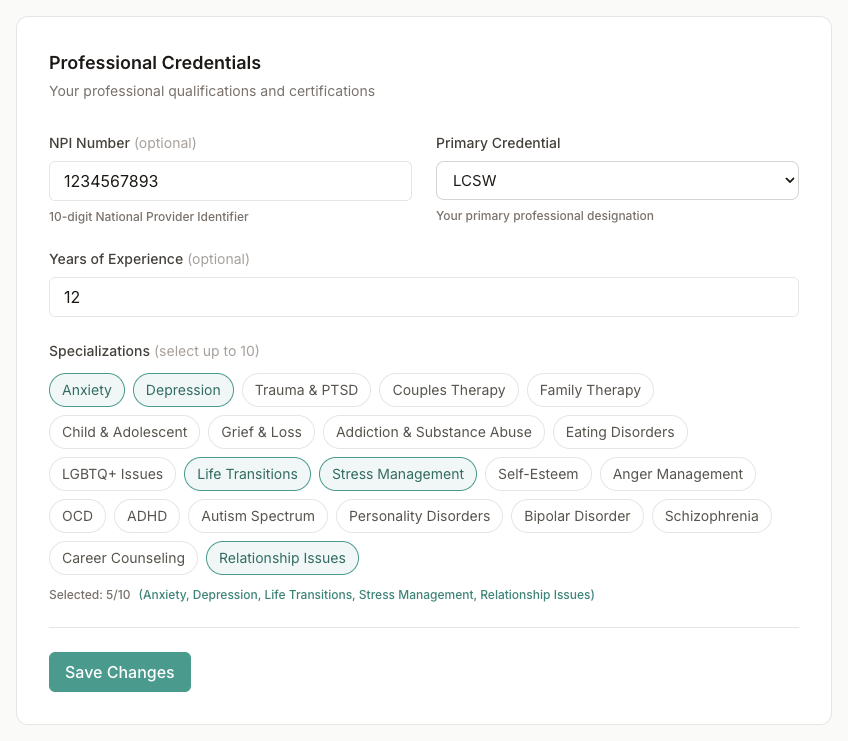
Professional Credentials (therapists only):
- NPI Number (optional) — your 10-digit National Provider Identifier
- Primary Credential — your main professional designation, such as LCSW, LMFT, LPC, PsyD, or PhD
- Years of Experience (optional)
- Specializations — select up to 10 areas of expertise
Your credential appears next to your name for your patients.
Licenses (Therapists)
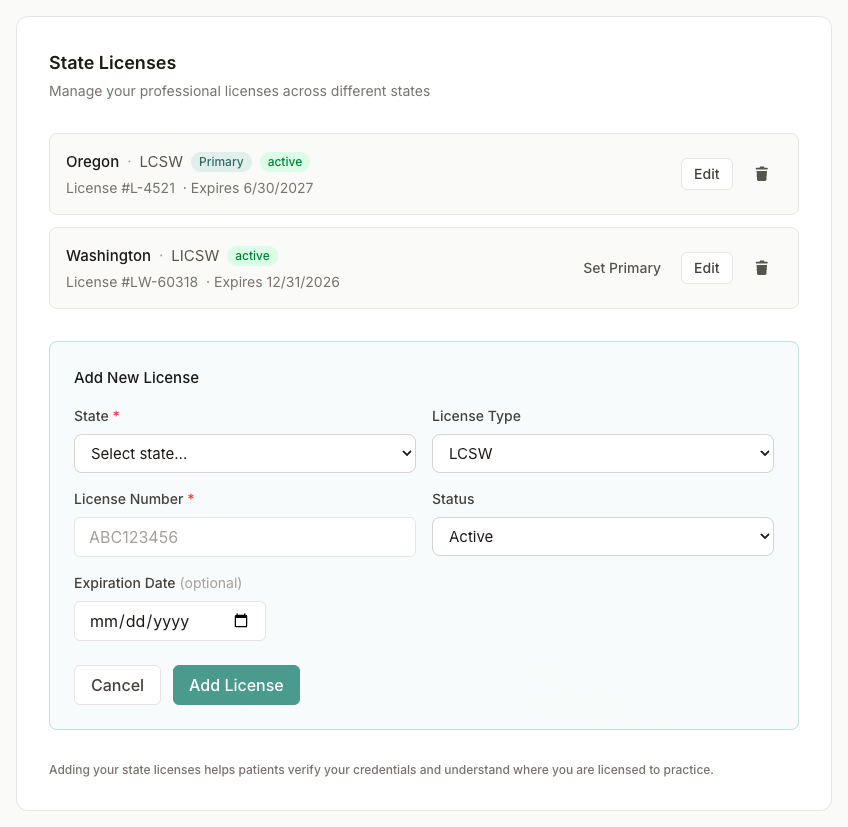
State Licenses (therapists only) lists each license with its state, type, status, license number, and expiration date, and marks your Primary license.
- Add State License — choose the State and License Type, enter the License Number, set the Status (Active, Pending, Expired, or Inactive), add the Expiration Date if you like, and select Add License
- Set Primary — make another license your primary one
- Edit — change a license, then select Update License
- Remove (trash can) — delete a license
Keep expiration dates up to date so your profile stays accurate.
Practice (Therapists)
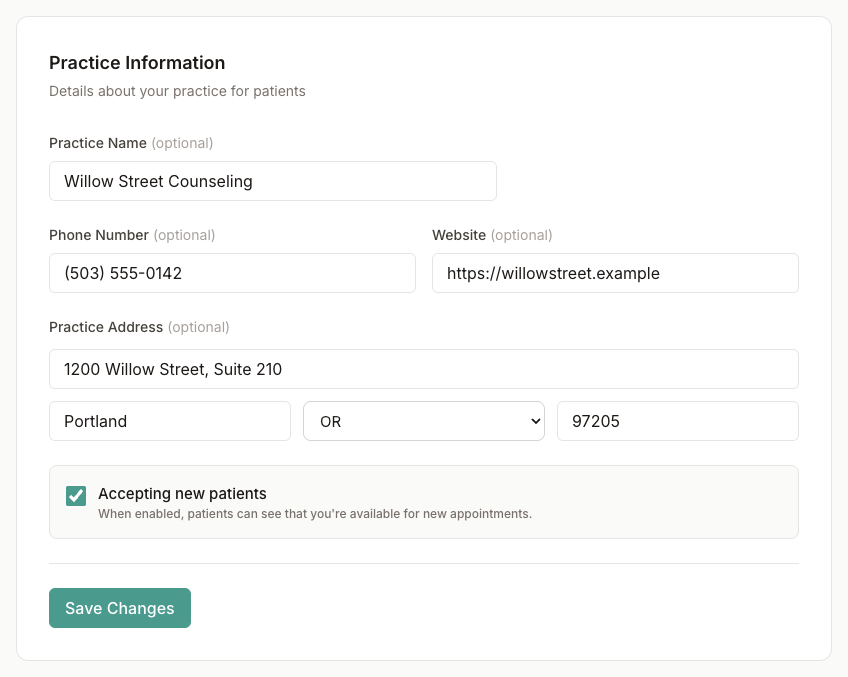
Practice Information (therapists only) holds the details about your practice for patients:
- Practice Name
- Phone Number and Website
- Practice Address — street, city, state, and ZIP code
- Accepting new patients — when on, patients can see that you're available for new appointments
Every field is optional. Select Save Changes when you're done.
Billing (Therapists)
Billing (therapists only) shows your Eunoia subscription:
- Status — for example, Active, Trial, or Payment past due — and when it renews
- Subscribe — start a subscription through secure checkout
- Manage billing — update your card and download invoices in the Stripe billing portal
- Cancel subscription — stops future charges; you keep access until the end of the current period
If online payments haven't been set up yet, the page tells you so — there's nothing to pay.
Developer & AI
Developer & AI is where you connect ChatGPT, Claude, and other AI assistants to your account, see and disconnect Connected apps, and create API keys for scripts and integrations. See Ask Eunoia and AI Connections for a step-by-step guide.
Saving Your Changes
Most sections have their own Save Changes button, and you'll see a confirmation once your changes are saved. A few settings save the moment you change them — like the email notifications switch and your passkeys. Each section saves independently, so changes in one don't affect the others.