Using Your Patient Dashboard
Learn how to write and share reflections, keep up with homework and appointments, and connect with your therapist
Last updated:
Your Dashboard at a Glance
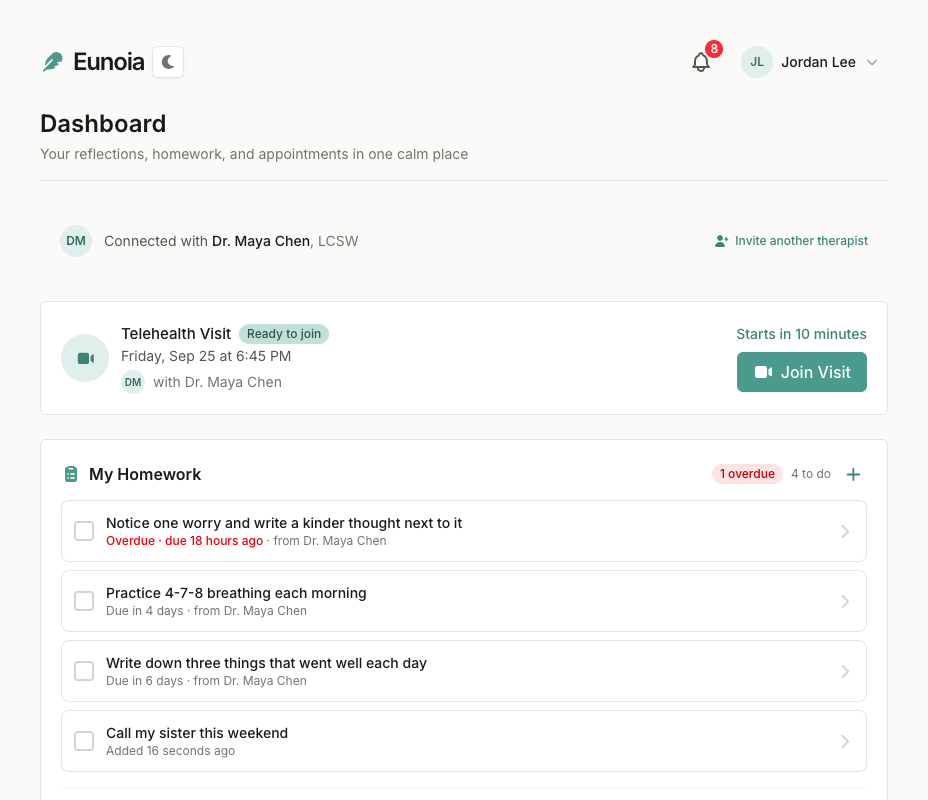
Your dashboard is your personal space between sessions. From top to bottom you'll find:
- Your therapist — who you're connected with, plus any invitations waiting for you
- Your next visit — the date, time, and a Join button for video visits
- My Homework — what's on your list right now
- Past appointments — select it to see your earlier visits
- My reflections — your thoughts, notes, and progress
The header holds the notification bell and your account menu (with Settings and Sign out). The Ask Eunoia button in the corner can answer questions and look things up for you.
Writing a Reflection
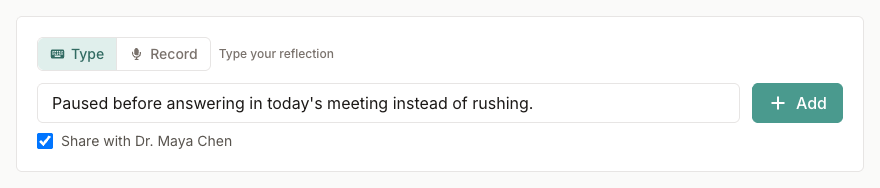
Reflections can be as short as a sentence. To add one:
- Type in "What's on your mind?" at the top of My reflections
- Press Enter or select Add
Rather talk than type? Switch from Type to Record, tap the microphone, and say what's on your mind (up to five minutes). When you stop, Eunoia transcribes your words so you can read them over and edit them. Select Clean up to let AI tidy the transcription (it removes filler words) — then Keep the result or Undo it. Leave Keep the recording with this reflection ticked if you'd like the audio saved too, and select Add reflection.
What should you reflect on? Anything that feels useful: how you're feeling today, something that came up in your last session, a small win, a hard moment, or a question for your therapist.
Reflections are private by default. Once you're connected with a therapist, you'll see a Share with … checkbox if you'd like them to see this one.
Organizing Your Reflections
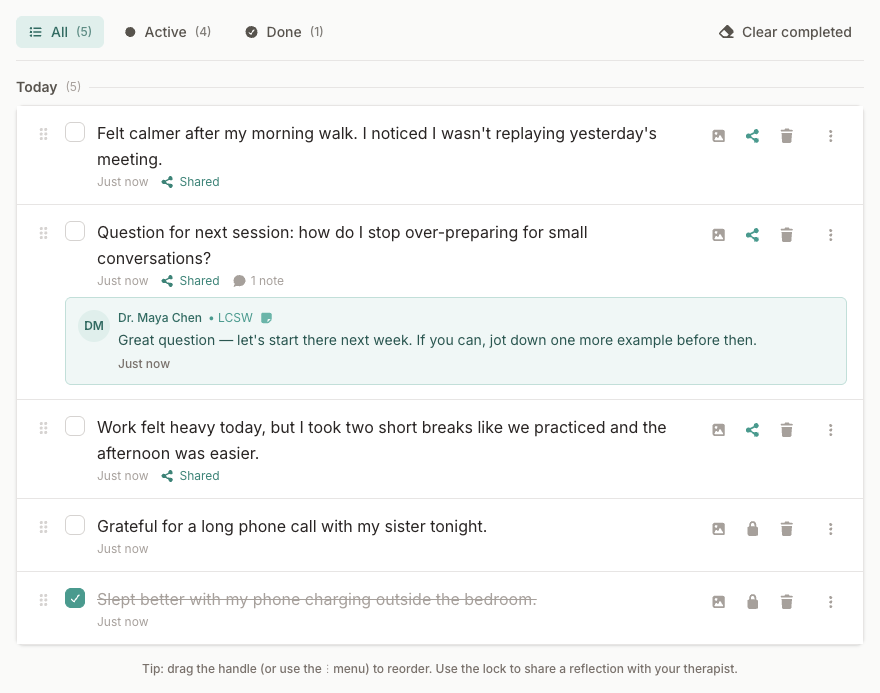
Your reflections are grouped by when you wrote them — Today, Yesterday, This week, and so on.
- Filter — choose All, Active, or Done. The numbers show how many are in each.
- Mark as done — tick the box beside a reflection when you've worked through it. Tick it again to make it active.
- Reorder — in the All view, drag a reflection by its handle, or use the ⋮ menu to Move up or Move down within its group.
- Add images — select the image button to attach photos (up to 10 per reflection).
- Delete — select the trash can. Deleting removes the reflection with its images, recordings, and notes, and can't be undone.
- Clear completed — permanently deletes all your completed reflections at once.
Select a reflection's text to open it.
Opening a Reflection
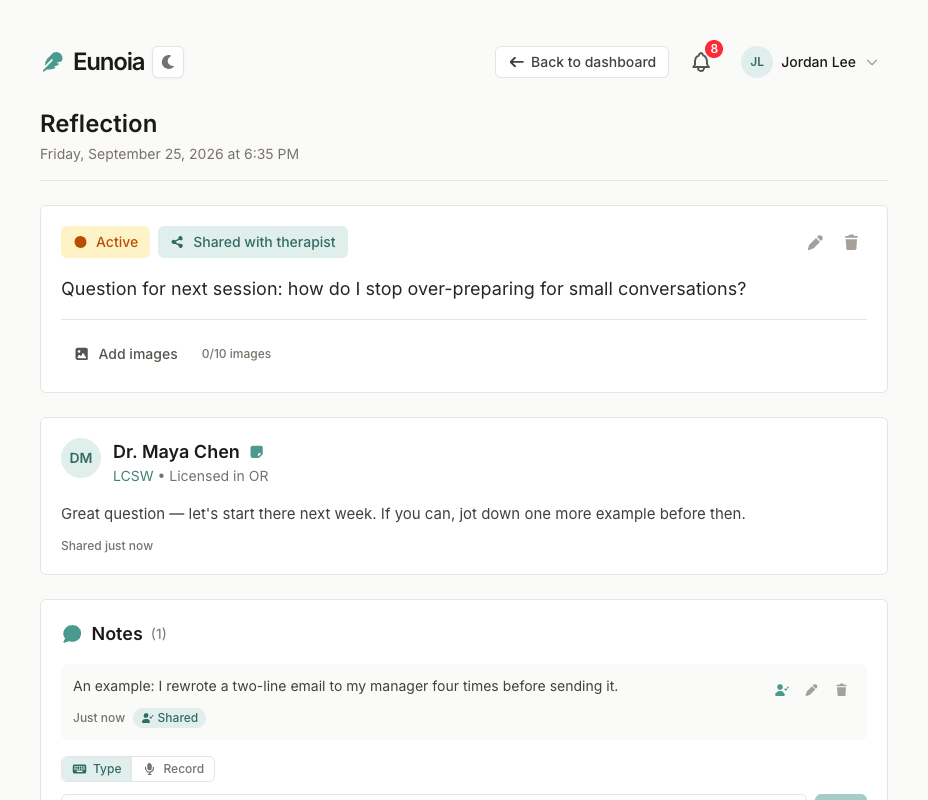
Opening a reflection shows everything about it in one place:
- Active / Completed — select to change its status
- Private / Shared with therapist — select to change who can see it
- Edit (pencil) — fix a typo or add a thought, then Save
- Add images — see and add photos; select a photo to view it larger or remove it
- Voice recording — play your recording, along with the original transcription if you edited the text
- Notes from your therapist — any note your therapist chose to share with you, including voice notes and attached files
- Notes — your own follow-ups over time. Type a note or switch to Record (your words are transcribed). You can edit or delete a note, and use the person icon to share it with your therapist.
- Activity — a timeline of what's happened: created, shared, edited, notes added, and more
Your notes are visible to your therapist only when both the note and the reflection are shared.
Sharing Reflections with Your Therapist
You decide what your therapist sees. Every reflection starts out private. To share one:
- While writing — tick Share with … before you add it, or
- Later — select the lock button beside the reflection (or Private on its page)
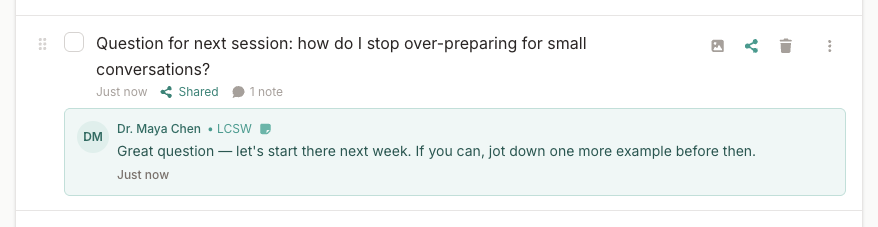
Shared reflections are marked Shared. Changed your mind? Select the button again to make the reflection private — your therapist will no longer see it. If you're connected with more than one therapist, a shared reflection is visible to each of them.
Your therapist may reply with a note. Their replies appear right under the reflection in your list and on the reflection's page, and you'll get a notification.
When to share: sharing a reflection or two before a session gives your therapist a sense of what's been on your mind. Some people share everything, others share selectively — do what feels right for you.
Your Homework
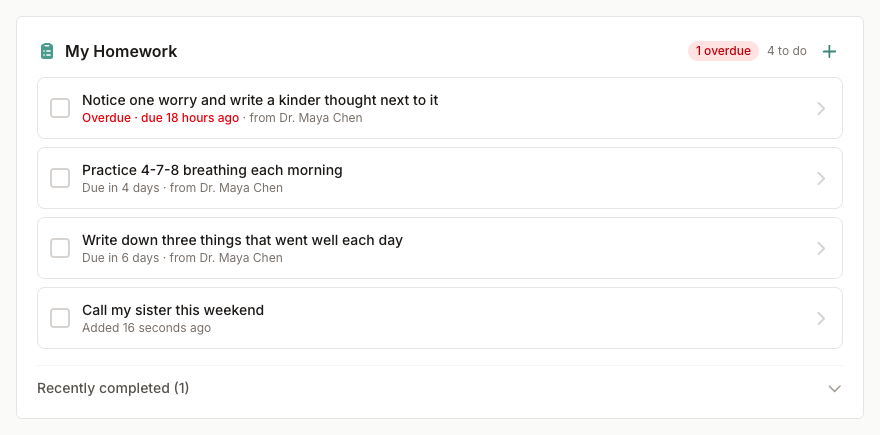
My Homework shows the exercises your therapist has assigned, with how many are to do and any that are overdue.
- Check off an item when you've done it — it moves to Recently completed.
- Open an item to read the details and add notes about how it's going. You can type a note or record a voice note, which is transcribed for you. From here you can also change the status (Assigned, In progress, Completed, or Skipped), priority, and due date.
- Add your own — select + and type what you want to work on. If you see more than one therapist, choose who to share it with.
You can delete homework you added yourself. Your therapist can see your progress and your notes, too.
Appointments and Video Visits
Your next visit appears near the top of your dashboard with its date and time, who it's with, and how long until it starts. Select the card to open the appointment's page.
Video visits. A Join Visit button appears 15 minutes before a video (telehealth) visit starts — on your dashboard and on the appointment page. You'll check your camera and microphone in a waiting room first. If you move to another page during the call, the video keeps going in a small floating window, so you can glance at a reflection or your homework without hanging up.
Your therapist may ask to record a session's audio. Recording only starts if you select I Consent, and either of you can stop it at any time. The transcript and AI summary are for your therapist only.
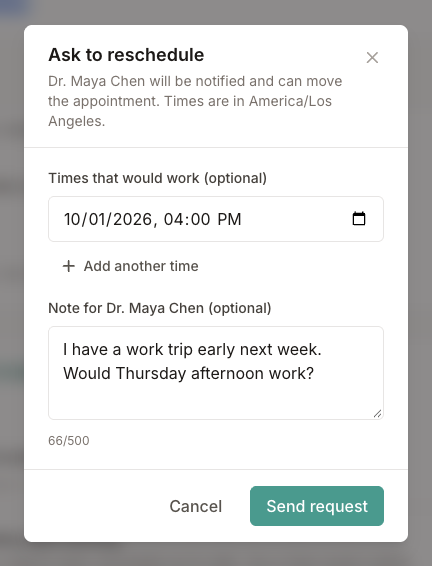
Need a different time? Only your therapist can move an appointment, but you can ask:
- Open the appointment and select Ask to reschedule
- Add up to three times that would work (in your time zone), and a note if you like
- Select Send request
Your appointment stays as it is until your therapist moves it, and you'll be notified when they do. To call it off instead, select Cancel appointment — you can add a reason, which your therapist will see.
The appointment page also shows any session notes your therapist shares with you and homework from that session. Select Past appointments on your dashboard to look back at earlier visits.

Accepting Therapist Invitations
When your therapist invites you, you'll get an email or text message with a link. Open it to see who invited you, then choose Accept and connect or Decline invitation right on that page. If you don't have an account yet, select Get started — use the email address the invitation was sent to — and you'll come back to the invitation after signing in.
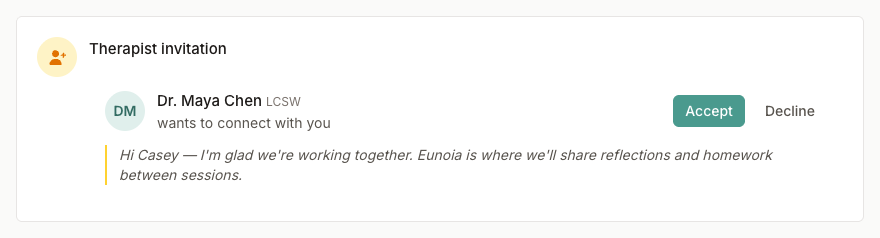
Already signed in? The invitation also appears at the top of your dashboard as a Therapist invitation card, along with any personal note from your therapist. Select Accept or Decline.
Once you're connected, your therapist can see the reflections you choose to share, and you'll see the homework and appointments they set up for you. They never see your private reflections.
Connecting with Your Therapist
When you're connected, your dashboard shows Connected with and your therapist's name and credential. You can be connected with more than one care provider — for example, a therapist and a psychiatrist.
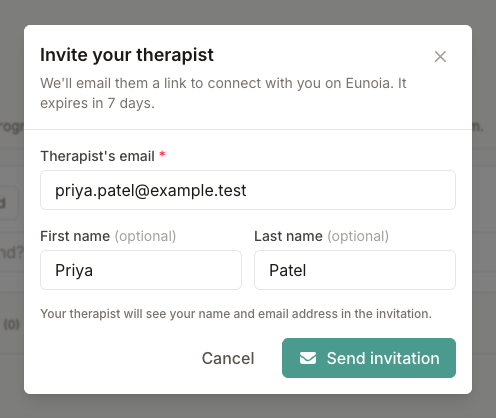
Is your therapist not on Eunoia yet? Select Invite your therapist (or Invite another therapist), enter their email address (and name, if you like), and select Send invitation. They'll get an email with a link to connect with you; the link expires in 7 days, and you can also copy it and send it to them yourself.
Invitations you've sent appear under Pending therapist invitations, where you can copy the invitation link to share it yourself, Resend it (the link then works for another 7 days), or Cancel it.