Scheduling Appointments
Learn how to schedule one-off and recurring appointments, handle reschedule requests and reminders, run video visits, and write session notes
Last updated:
How Scheduling Works
Eunoia schedules from each patient's chart. Book a single one-off appointment, or set up a recurring schedule — every week, every two weeks, or monthly — and Eunoia books each session as a real appointment. Your patient sees every appointment on their dashboard, both of you get reminders, and video visits happen right inside Eunoia.
The Schedule Section
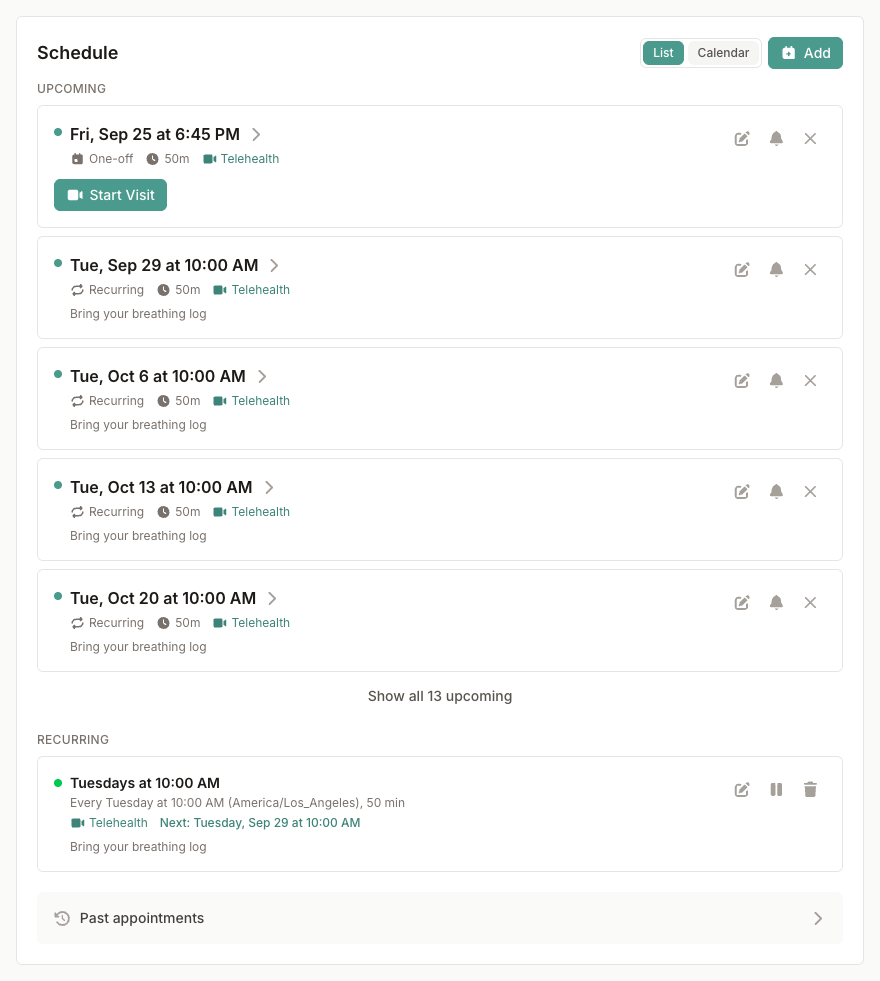
Open a patient's chart and find the Schedule section. Select Add to schedule something new (or Schedule [name] if nothing is scheduled yet). Switch between List and Calendar — the calendar has day, week, and month views.
In the list view you'll see:
- Upcoming — the next sessions, marked Recurring or One-off, with their length, and whether they're a video visit or at a location
- Recurring — each active recurring schedule and its next session
- Needs an outcome — past sessions that haven't been marked completed or no-show yet
- Paused — recurring schedules you've paused
- Past appointments — select it to look back
Scheduling an Appointment
Select Add in the Schedule section, then:
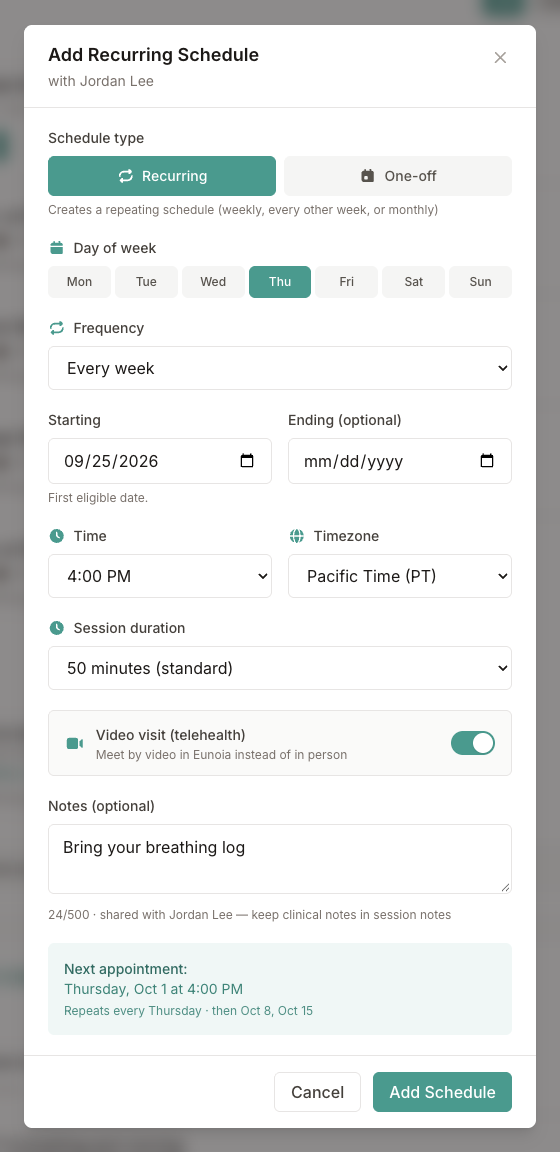
- Schedule type — Recurring (a repeating schedule) or One-off (a single appointment)
- When — for recurring schedules, the Day of week, Frequency, a Starting date, and an optional Ending date. For one-off appointments, the Date.
- Time — in 15-minute steps
- Timezone — starts with the time zone from your profile
- Session duration — 50 minutes unless you choose otherwise
- Video visit (telehealth) — turn it on to meet by video in Eunoia instead of in person
- Notes (optional) — logistics your patient can see, like "Bring your mood log"
- Select Add Schedule or Add Appointment
Check the preview at the bottom before saving — it shows the next appointment (and, for recurring schedules, the ones after it). For one-off appointments, Suggest open times lists free slots in your working hours (Monday–Friday, 9–5) for the week starting on the date you picked — select one to use it, or look at the Next week.
If a time overlaps another appointment, Eunoia tells you which one and lets you choose another time or Book anyway (double-book). Appointments set in the past are recorded as past sessions without notifying your patient.
Frequency Options
Choose the rhythm that fits your treatment plan:
- Every week — the same day and time each week
- Every 2 weeks — every other week, starting from the first matching day on or after the start date
- Monthly (same weekday) — for example, the second Tuesday of each month. The week of the start date decides which one.
Add an Ending date if the schedule should stop, or leave it open-ended. You can edit, pause, or end a schedule at any time.
Session Length
Available session lengths:
| Length | Common use |
|---|---|
| 30 minutes | Brief check-ins |
| 45 minutes | Shorter sessions |
| 50 minutes (standard) | A typical therapy hour (the default) |
| 60 minutes | Extended sessions |
| 90 minutes | Intensive sessions or assessments |
| 2 hours | Extended assessments |
Location and Notes
For an in-person one-off appointment, add a Location (for example, "Suite 200, 12 Main St"). Your patient sees it on their appointment.
Notes are for logistics and are visible to your patient — "Bring your mood log," for example. Keep clinical notes in your session notes instead.
Rescheduling, Cancelling, and Recording Outcomes
Each upcoming session in the Schedule section (and on its appointment page) has quick actions:
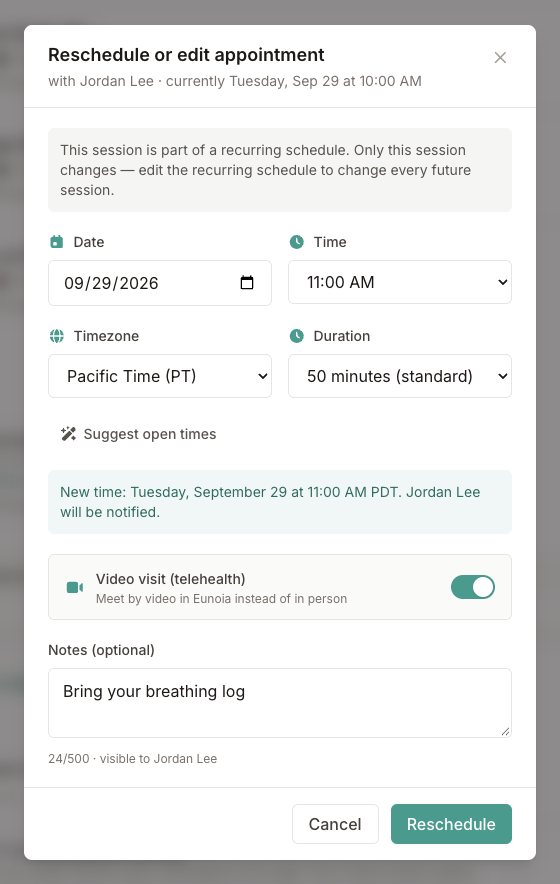
- Reschedule or edit — change the date, time, time zone, or length of this one session. If it's part of a recurring schedule, only this session changes and it's marked Changed. Your patient is notified of the new time.
- Send reminder — see Reminders
- Cancel appointment — add an optional reason, which your patient will see. They're notified either way.
- Mark completed or Mark no-show — available once a session has started. Past sessions without an outcome wait under Needs an outcome, and you can change an outcome later.
For a recurring schedule:
- Edit recurring schedule — change the day, time, frequency, dates, or length for future sessions
- Pause schedule — removes its upcoming sessions from both calendars (your patient is notified); Resume schedule brings them back
- End schedule — permanently stops it. Future sessions are removed and your patient is notified; past sessions are kept.
When a Patient Asks to Reschedule
Patients can't move appointments themselves — instead they can Ask to reschedule from their appointment page, suggesting up to three times that would work and adding a short note.
You'll get a reschedule request notification with their suggestions. The appointment stays where it is until you move it with Reschedule or edit, and your patient is notified when you do.
Reminders
Automatic reminders go out 24 hours and 1 hour before each appointment, to you and your patient, by email, text message, or in-app notification — according to each person's notification settings. For video visits, there's also a heads-up shortly before the start.
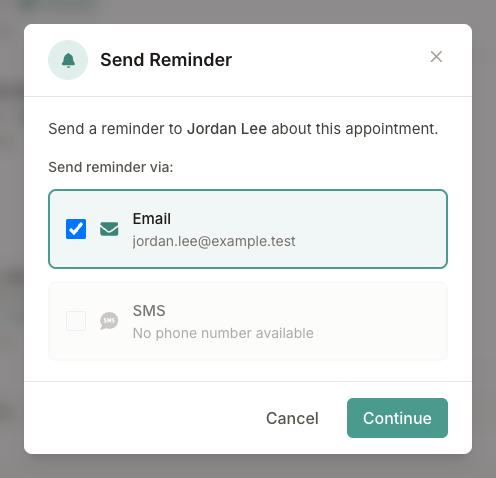
Send a reminder yourself anytime with the bell button (Send reminder) on an upcoming appointment. Choose Email and/or SMS, confirm, and Eunoia sends it right away. Close to a video visit's start, the reminder lets your patient know you're ready and asks them to join.
Text reminders you send go to the number your patient verified in their notification settings or, if they haven't verified one, to the Mobile number for reminders in their chart's Care settings.
Video Visits
For appointments marked Video visit (telehealth), a Start Visit button appears 15 minutes before the start — on your dashboard, in the Schedule section, and on the appointment page. Once your patient is waiting, it changes to Join Now and shows how long they've been there.
You'll check your camera and microphone in a waiting room, then select Join Session. During the call you can mute, turn your camera off, change devices, and pop the video out into picture-in-picture. Select Open session notes to jump to the appointment page — the call keeps running in a small floating player you can drag anywhere, so you can write notes while you talk.
When you're done, select the hang-up button: Leave for now keeps the room open so you can rejoin, and End for everyone closes the room and marks the appointment completed.
Recording: once your patient has joined, select the record button to ask to record the session's audio. Recording starts only after both you and your patient consent, only audio is recorded, and either of you can stop it at any time. Afterward, the appointment page shows a Session Summary written by AI and the Session Transcript & Audio — these are for you only; your patient never sees them.
Session Notes
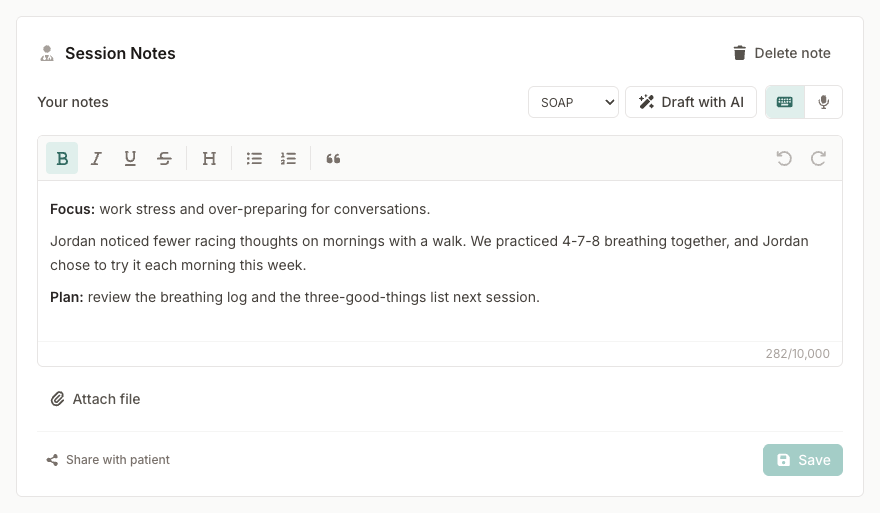
Every appointment page has a Session Notes card for your clinical notes:
- Write with formatting, or record a voice note — it's transcribed into the note
- Attach files to the note
- Share with patient — your patient is notified and can read the note, its voice note, and attachments on their appointment page. Notes are private until you share them.
- Save your changes, or Delete note
Draft with AI: choose a format — SOAP, DAP, BIRP, or Narrative — and select Draft with AI. Eunoia drafts a progress note from what it knows about this appointment: the session transcript and AI summary (if the session was recorded), your existing note, and homework assigned or reviewed in the session. The draft replaces what's in the editor, but nothing is saved until you select Save. It won't add facts beyond those sources and marks gaps for you to complete — always review and edit it before saving.
Below the notes, Session homework shows the homework due for this session (and how much of it was completed), anything you assign during the session, and your patient's other open homework.
Today's Appointments
Your dashboard's Today's appointments card lists every session on today's calendar, where you can start video visits and send reminders. See Managing Your Practice Dashboard.