Getting Started with Eunoia
Learn how to sign in without a password, choose your role, and take your first steps as a patient or therapist
Last updated:
Welcome to Eunoia
Welcome to Eunoia (you-NOY-uh) — from the Greek for "beautiful thinking." Eunoia gives you and your therapist a calm, shared space for the time between sessions: patients capture reflections and work on homework, therapists see what their patients choose to share, and appointments, video visits, and gentle reminders all live in one place.
Signing Up and Signing In
Eunoia doesn't use passwords. Creating an account and signing in are the same few steps:
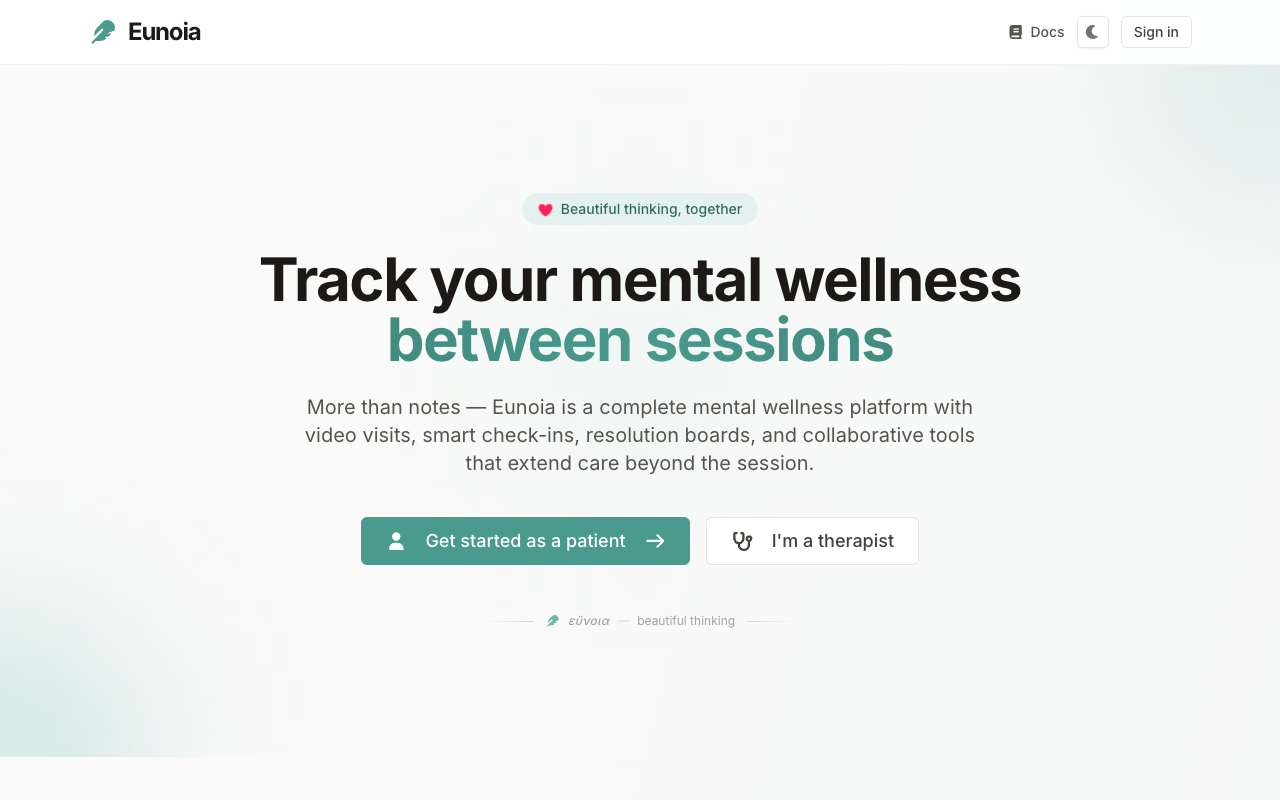
- Start on the home page. Choose Get started as a patient, I'm a therapist, or Sign in.
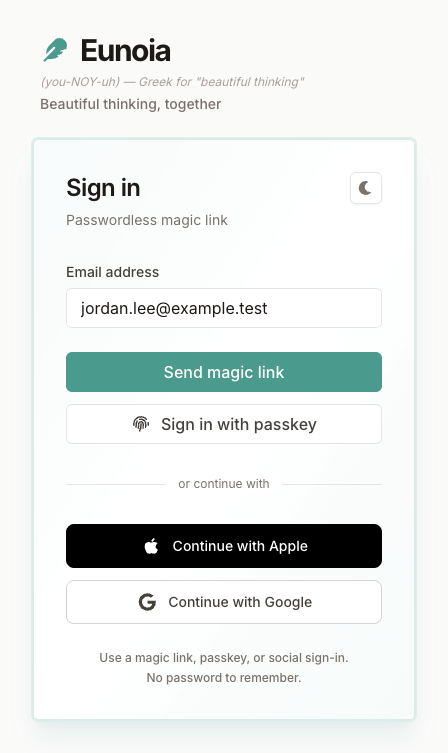
- Enter your email address and select Send magic link.
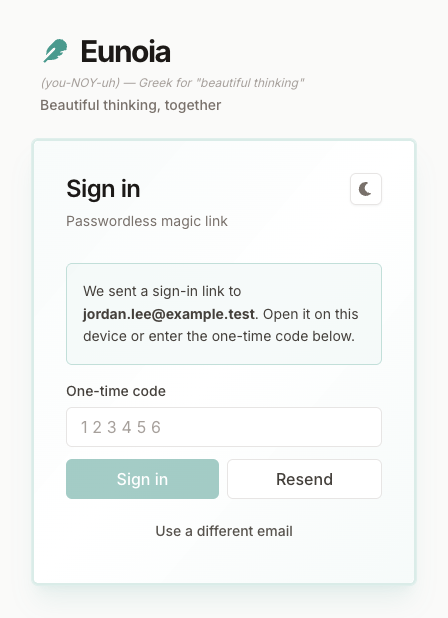
- Check your email. Open the sign-in link on the same device, or type the 6-digit one-time code from the email into the sign-in page — it signs you in as soon as all six digits are in.
Didn't get the email? Check your spam folder, or select Resend for a fresh code. You can also select Use a different email to start over.
Other ways to sign in: choose Continue with Google or Continue with Apple, or — once you've added a passkey in Settings → Account — Sign in with passkey to use your device's fingerprint or face unlock, or a security key.
If there's no account for your email yet, one is created the first time you sign in.
Choosing Your Role
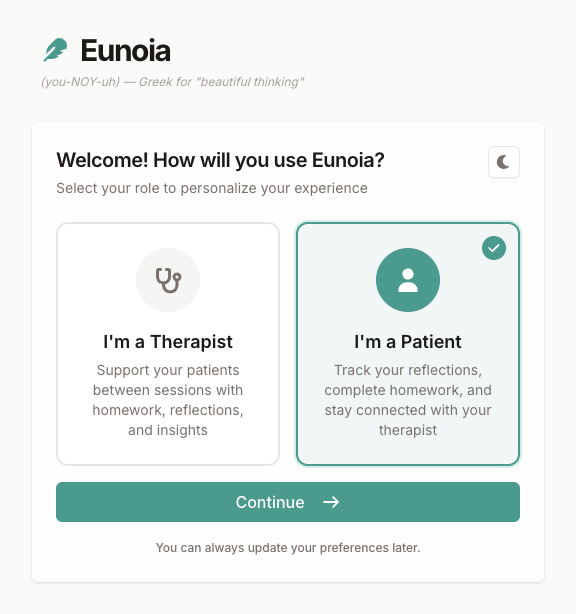
The first time you sign in, Eunoia asks how you'll use it:
- I'm a Therapist — support your patients between sessions with homework, reflections, scheduling, and video visits.
- I'm a Patient — keep reflections, complete homework, and stay connected with your therapist.
Select one, then Continue. Next, add a display name if you like — it's the name your therapist or patients will see — and select Get Started. You can change your name later in Settings → Profile.
If you started from Get started as a patient or I'm a therapist, your role is already chosen and you'll go straight to your name. And if you open an invitation from your therapist first, accepting it sets up your account as a patient for you.
For Patients: Your First Steps
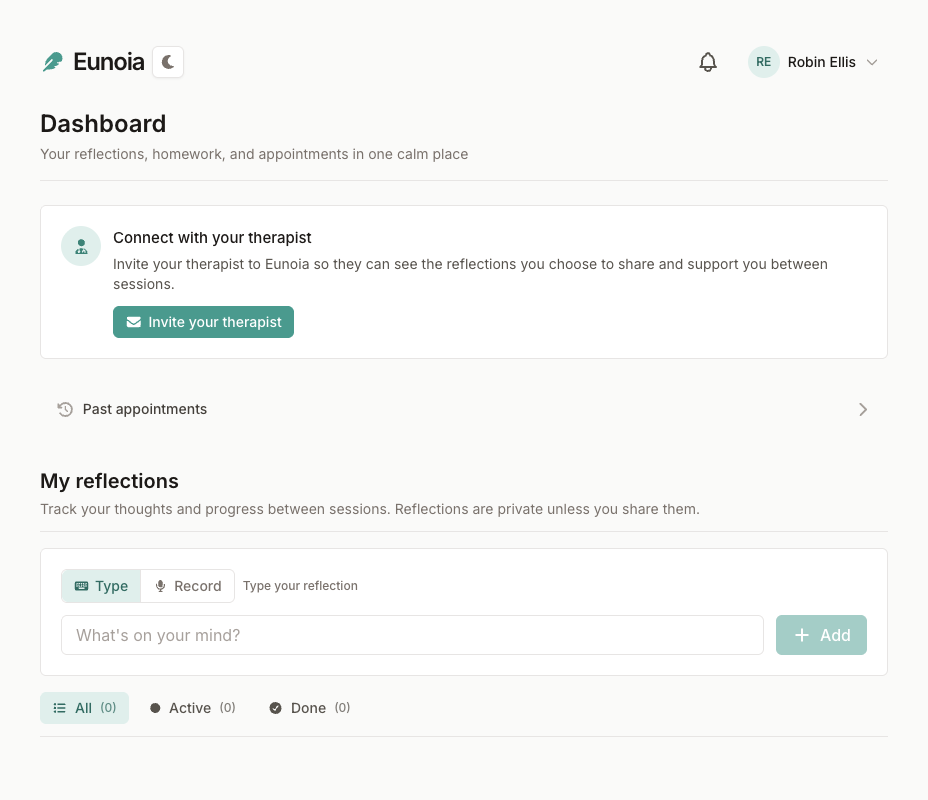
After you choose the patient role, you'll land on your dashboard. Here's a good way to begin:
- Connect with your therapist. If they invited you, accept from the link in your email or text message, or from the invitation card at the top of your dashboard. If they aren't on Eunoia yet, select Invite your therapist to send them a link.
- Write your first reflection. Type a few words in What's on your mind? — or switch to Record and say it out loud.
- Share when you're ready. Reflections are private until you choose to share them.
Once you're connected, the same page shows homework from your therapist, your next appointment, and your past visits. See Using Your Patient Dashboard for a full tour.
For Therapists: Your First Steps
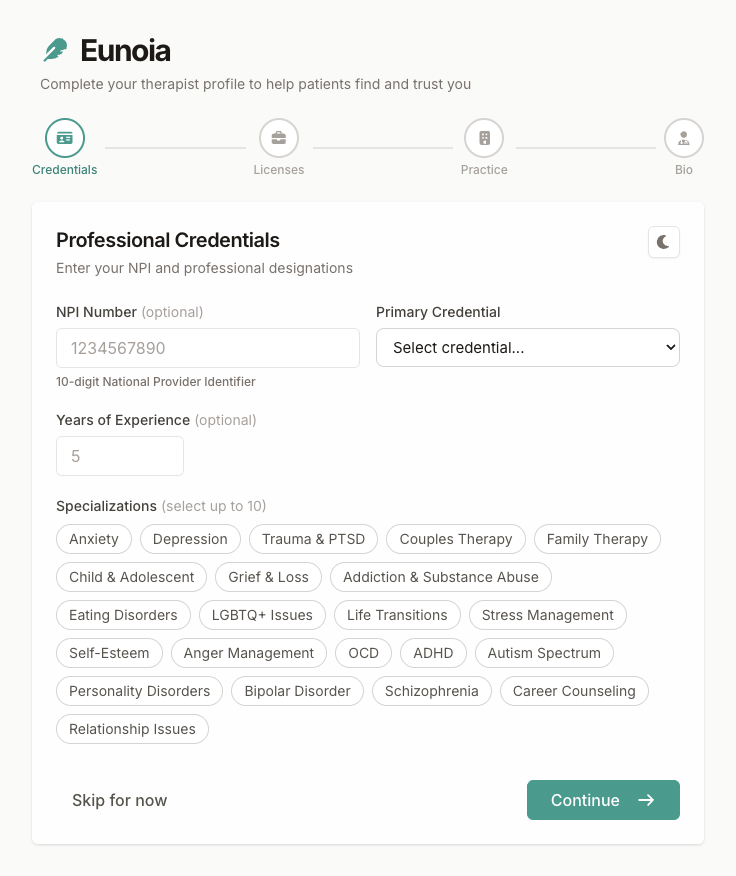
After you choose the therapist role, a short setup wizard helps you build your professional profile:
- Credentials — your NPI number, primary credential (LCSW, LMFT, PsyD, and more), years of experience, and specializations
- Licenses — the states you're licensed in, with license numbers and expiration dates
- Practice — your practice name, phone, website, address, and whether you're accepting new patients
- Bio — a short introduction for your patients
Short on time? Select Skip for now on the first step and finish later in Settings. From your dashboard, select Invite patient to bring your first patient on board — see Inviting Patients and Completing Therapist Onboarding.
Getting Help
Help is never far away:
- Ask Eunoia — select the Ask Eunoia button in the corner of any page (or press ⌘J on a Mac, Ctrl+J on Windows) to ask a question, find something, or get a task started. Learn more in Ask Eunoia and AI Connections.
- This help center — step-by-step guides for patients and therapists.