Ask Eunoia and AI Connections
Learn how to use the Ask Eunoia assistant, connect ChatGPT, Claude, and other AI apps to your account, create API keys, and what gets logged
Last updated:
AI in Eunoia
Eunoia is built so that AI can help with the same things you do in the app — looking up your schedule, checking homework, or rescheduling a visit — without ever doing more than you could do yourself. There are three ways in:
- Ask Eunoia — an assistant built into every page of the app
- Your own AI assistant — connect ChatGPT, Claude, or another assistant that supports the Model Context Protocol (MCP)
- API keys — for scripts and integrations you build
In every case, AI acts as you: it can see and change only what you can. It asks before changing anything, and every action is recorded.
Ask Eunoia
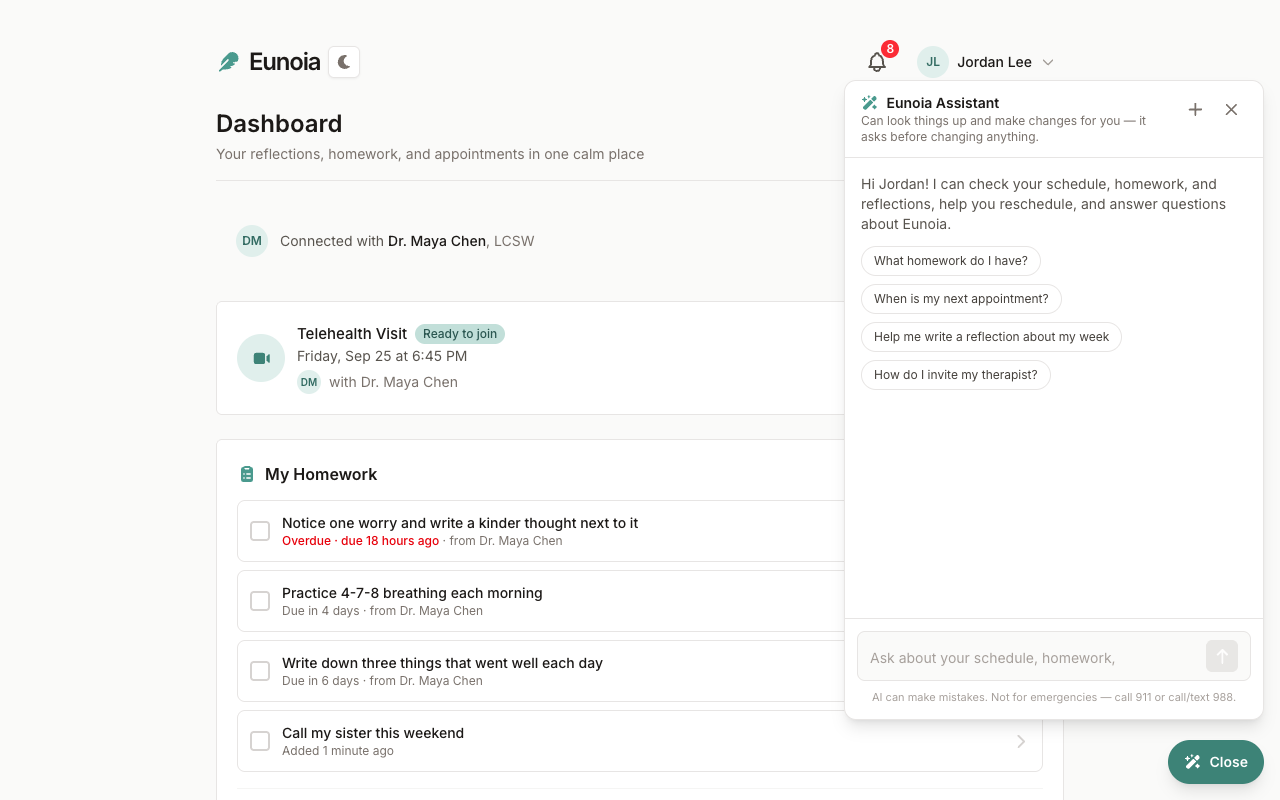
Select Ask Eunoia in the bottom corner of any page, or press ⌘J on a Mac (Ctrl+J on Windows). Press the same keys or Esc to close it.
Ask in your own words. Ask Eunoia can:
- Look things up — "When is my next appointment?", "What homework do I have?", "What's on my schedule today?", "Which homework is outstanding across my patients?"
- Help you write or plan — "Help me write a reflection about my week", "Summarize the reflections I flagged", "Find an open hour next week"
- Answer questions about Eunoia — "How do I invite my therapist?"
- Open the right page for you
- Make changes for you — like asking your therapist to reschedule, or scheduling and assigning homework for therapists — after you approve them
When you first open it, you'll see a few suggestions to get started. Your conversation is saved, so you can close the panel and pick up where you left off on this device; select + to start a new conversation.
AI can make mistakes, so check important details. Ask Eunoia is not for emergencies — call 911, or call or text 988.
Approving Changes
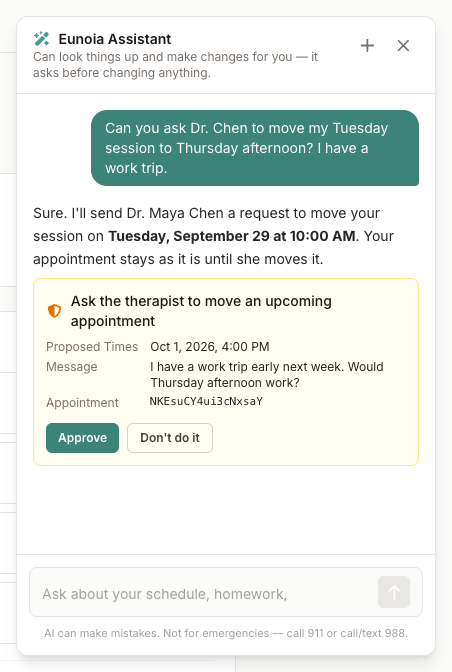
Before Ask Eunoia changes anything — scheduling, homework, invitations, sharing — it shows an approval card with the action and its details, like the times you're proposing and your note. Read it over, then:
- Approve — Eunoia makes the change, and the screens you have open update
- Don't do it — nothing changes, and the assistant is told you declined
Nothing is changed until you approve. A few small, private actions happen without a card — for example, reordering your reflections, flagging a patient's reflection for follow-up, or drafting a session note without saving it.
AI Elsewhere in Eunoia
You'll find AI quietly helping in a few other places, too:
- Voice notes are transcribed — when you record a reflection, a note, or homework, your words are turned into text you can edit
- Clean up — tidies the transcription of a recorded reflection by removing filler words. You can Keep the result or Undo it.
- Session summaries — when both people consent to recording a video visit, the therapist gets a transcript and an AI summary. Patients don't see them.
- Draft with AI — therapists can draft a progress note (SOAP, DAP, BIRP, or narrative) from the session's material, then review and edit it before saving. See Scheduling Appointments.
Connecting ChatGPT, Claude, and Other AI Assistants
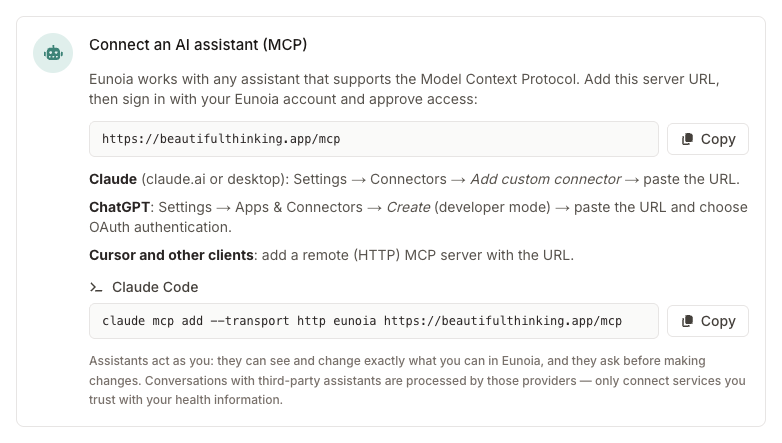
You can use Eunoia from the AI assistant you already use. Go to Settings → Developer & AI and find Connect an AI assistant (MCP). Copy the MCP server URL — https://beautifulthinking.app/mcp — and add it to your assistant:
- Claude (claude.ai or desktop): Settings → Connectors → Add custom connector → paste the URL
- ChatGPT: Settings → Apps & Connectors → Create (developer mode) → paste the URL and choose OAuth authentication
- Claude Code: copy the command shown on the page and run it
- Cursor and other clients: add a remote (HTTP) MCP server with the URL
Your assistant then opens Eunoia so you can sign in with your usual account and approve access.
Conversations with third-party assistants are processed by those providers — only connect services you trust with your health information.
Approving an App: View or Act
When you connect an app, Eunoia shows a consent screen that asks: Allow [app name] to use your Eunoia account? It tells you:
- Who published the app — or that the app registered itself, so its name isn't verified
- Where access will be sent, and which account you're signed in with
- A warning if the app is running on your own computer, so you only continue if you just started connecting from it
Then choose what the app may do:
- View — see your Eunoia data (appointments, homework, reflections, and notes you can access). This is always included.
- Act — make changes on your behalf, like scheduling or rescheduling, or assigning or completing homework. It appears only if the app asks for it. Eunoia tells the app which actions make changes, and assistants like ChatGPT and Claude ask you before using them. Untick Act to give view-only access.
Select Allow to connect, or Deny.
Disconnecting an App
Settings → Developer & AI → Connected apps lists every AI assistant you've approved, with the access it has and when you connected it. Select Disconnect to remove an app — it can no longer reach your Eunoia account. You can connect it again anytime.
API Keys
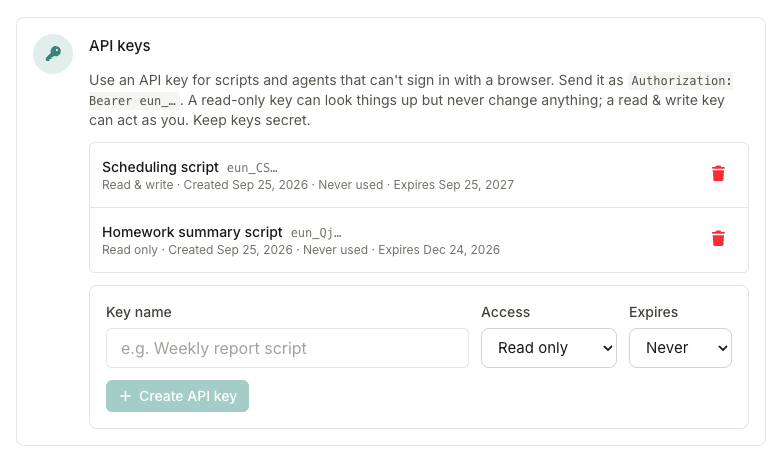
API keys are for scripts and agents that can't sign in with a browser. In Settings → Developer & AI → API keys:
- Enter a Key name, like "Weekly report script"
- Choose the Access: Read only keys can look things up but never change anything; Read & write keys can act as you
- Choose when it Expires — never, or after 30 days, 90 days, or 1 year
- Select Create API key
Your new key is shown only once — copy it right away, then select I've saved it. Send it with each request as Authorization: Bearer eun_…. The REST API section links to the API reference and the OpenAPI specification.
The list shows each key's access, when it was created, when it was last used, and when it expires. Select the trash can to revoke a key — anything using it loses access immediately.
For your safety, keys can only be created while you're signed in to the Eunoia website — never by another key, a connected app, or the assistant.